
Appearance
What's New in v1.5
Orbit 1.5 is the biggest release since launch — a full timeline, a built-in video editor, a completely rebuilt IAMF / Eclipsa export, a rebuilt QC PDF report, OSLS — a customisable speaker output system that drives any layout up to 64 channels — two switchable speaker layouts and speaker arrays in 1.5.9, and in 1.5.10 Stereo Reference and real 360 video exports.
This page has the release notes for every 1.5 release, newest first: 1.5.10, 1.5.9, 1.5.8, 1.5.7, 1.5.6, 1.5.5, 1.5.3, 1.5.2, 1.5.1 and 1.5.0. There was no 1.5.4.
How to read this page
Sections labelled (Pro) are part of Orbit Pro. Everything else is included in the free Orbit edition. See the overview for a full Standard / Pro breakdown.
Highlights
- Stereo Reference, a new top bar and 360 exports (1.5.10) — switch between your immersive master and your own stereo mix with ⌘⇧A, one transport with pre-roll and an edit cursor, a meter on every track, and File ▸ Export 360 Video for YouTube 360, Eclipsa Audio™ and Esfera. Read more.
- Two layouts, speaker arrays and new Preferences (1.5.9) — switch between Multichannel 1 and 2, play a channel through several speakers, and every Preferences pane redesigned. Read more.
- A full timeline (Pro) — your entire master on one timeline: beds, objects and stems as colour-coded waveforms, with per-track soloing, looping and markers.
- A built-in video editor (Pro) — fast scrubbing, proxy generation and up to 4K, with text and graphic tools, for material bound for IAMF / Eclipsa.
- A rebuilt IAMF / Eclipsa export (Pro) — a full audio-routing graph, auto-route presets, and Mix Presentations for alternate mixes.
- OSLS — the Orbit Speaker Layout System — output to any custom speaker layout up to 64 channels, from one open-source
.oslsfile. Read more. - Per-speaker solo, mute & groups — the Monitor view with top-down, side and 3D layouts.
- A rebuilt QC PDF report — proper A4 pagination, a live preview, and (Pro) a full album workflow. Read more.
- Loudness, powered by Cota — the footer loudness section rebuilt on Cota's ITU-R BS.1770-5 engine. Read more.
- New privacy controls — optional, first-party usage data via Downlink, opt in or out any time. Read more.
- Speaker rooms (1.5.7) — calibrate a speaker once and keep that calibration on every layout, save it as a Room, test your wiring with pink noise, and keep a library of your own SOFA HRTF profiles. Read more.
- Performance across the board — lower CPU and memory use throughout.
1.5.10 — Stereo Reference and 360 video
Released 2026-10-31.
Compare your master with your own stereo mix, a new Welcome and top bar, a meter on every track, smoother video with real 360 exports, and the Playlist page.
New
Stereo Reference
- Compare your immersive master with your own stereo mix. File ▸ Add Stereo Reference… (or drop a WAV, BW64, RF64, AAC or MP3 on the reference lane, or on a track on the Playlist page). Standard and Pro.
- ⌘⇧A switches between the immersive mix and the reference, with a 10 ms crossfade; Monitoring ▸ Listen does the same, and the footer says when you're hearing the reference.
- Orbit checks it against the master — channels, format, sample rate, length, and level against the master's measured loudness — and asks, never blocks.
- It stays with the track: a session keeps a copy of the file, its Trim, and brings it back when the track opens. A file that has moved shows as missing with Relink.
- The reference lane is the first lane on the Timeline and stays put while the rest scroll.
See Stereo Reference.
A new Welcome
- Welcome, loading, sign-in and your account share one new look. Open a file and the Welcome carries you straight into it; the loading screen says what Orbit is doing.
- Your account in Orbit. See your licences and devices, release a Mac, change licence, or delete your account, without leaving the app. Releasing every Mac now asks for a code we email you.
- New session asks for a name, a place and a sample rate on the same screen.
- Your email stays private on screen. The loading screen no longer shows it, and everywhere else in the app it's shortened (b•••@icloud.com).
- Check again on the licence screen asks the server straight away, so a trial support extended for you starts working at once.
A new top bar
- One transport. Play, Stop, Loop and track skip sit together in one cluster, beside a bigger timecode card: the position over the total, your loop region, and the edit cursor, each on its own line. Double-click a time to type it; right-click the card for the timecode format, frame rate and 2-pop preroll.
- Pre-roll (PRE). Play can start a few seconds before the loop or the edit cursor. Click PRE to turn it on, double-click to type the length. Orange rails on the timeline show where Play will start.
- An edit cursor on every timeline. Click the timeline to place it: Play starts there, and with IFP off, Stop comes back to it. It used to exist only in sessions with video.
- Looping and the timeline grid for everyone. Standard now gets the ruler on the Overview, loop regions, the Loop button and the I / O / L shortcuts. Markers stay in Pro.
- Insertion Follows Playback (IFP). Off: Stop returns to where you pressed Play, so Play repeats the passage. On: Stop leaves the playhead where you stopped. Press Stop twice to go to the start.
- PTR shows the time under the mouse on the timeline.
- What's open, at a glance. The top-left corner names the mode (Preview, or Session in yellow) beside the traffic lights, and the file playing with its type (ADM or IAMF) beneath them — long names no longer squeeze. Open a file from File ▸ Open File… (⌘O).
- CPU and memory stacked, and the window's title bar is gone: the top bar uses that space. Tooltips can be turned off in Preferences ▸ Appearance.
See Menus & Shortcuts and Timeline View.
The timeline
- A meter on every track. Each lane shows its level beside the name — one bar per channel, grouped for multichannel tracks. Turn them off in the timeline's View menu.
- A new timeline toolbar. The toolbar is now the top row of the timeline itself: the All Tracks / Inspect switch over the track names, View and Edit menus, the tools, zoom and track size. It folds into two or three rows on a narrow window instead of hiding anything.
- Playhead scrolling. View ▸ Playhead Scrolling: Page flips to the next screen when the playhead reaches the edge, Continuous keeps the playhead centred, No Scroll leaves the view where it is.
Video
- Smoother, faster video. Frames are presented by timestamp, the way QuickTime does it, so 4K at 50/60 fps plays without the stutter. The viewer renders at the size it's shown and steps down on its own if playback can't keep up. Nothing transcodes in the background unless you ask.
- Accurate colour, and HDR. The viewer matches a BT.1886 reference monitor, and a session can output HDR (PQ) on an HDR display.
- Titles, shapes and graphics. Titles that animate in and out with editable curves, shape clips, and graphics you can place as often as you like.
- 360° video. A 360 viewer with your objects drawn on the sphere, sound that turns with the view in binaural, head-locked sound, VR180 and stereo, and an audio heatmap.
- 360° exports are real 360 files. Any export of a range with 360 footage is tagged as 360 (Spherical Video V1 and V2), so YouTube and other 360 players show it as a sphere. Each clip's front offset is built into the picture, so the file faces where the viewer faced. Stereo and VR180 keep their layout. An MP4 with Eclipsa Audio™ and a 360 picture still plays flat on YouTube today; the IAMF export says so.
- File ▸ Export 360 Video (Pro). One screen for a 360 deliverable, with the frame being rendered, its speed and every step as it goes. Every file is read back to check its 360 tags before Orbit calls it done.
- YouTube 360 writes first-order ambiX with head-locked sound as its own stereo pair, tagged so YouTube turns the sound field with the view. Head-locked Sources lets you choose, for this export only, which of the bed, objects and ambisonics groups ride that pair; the master is unchanged.
- 360 with Eclipsa Audio (experimental) writes IAMF Base-Enhanced in MP4. No standard pairs Eclipsa Audio™ with 360 video yet; the ? next to it says more.
- Esfera writes IAMF Advanced-2 in MP4, objects kept.
- Imports run in the background, with progress in the top bar.
- Burnt-in timecode. Add a timecode window to any title (Add ▸ Add Timecode), or drop the Timecode template over the whole programme. It shows exactly what Orbit's counter shows, 2-pop included, sits bottom left, centre or right in one click, and is burnt into video exports.
- One Shape tool, and shapes that fit. Graphics has a single Shape you drag in or click; pick the kind in Inspect. Triangles, stars and polygons now fill their box, and the box hugs the shape.
- Mask with any shape. Mask ▸ Shape cuts a clip with a triangle, star, polygon or arrow, feathered and inverted like the rectangle and ellipse.
- Title text size is in points, measured as on an HD frame, as in Final Cut Pro: a 108 pt title looks the same on an HD, 4K or 8K picture. Hover the size to see its height in pixels on yours.
- A bigger viewer when you want it. Drag the handle between the viewer and the timeline on the Video page; the size buttons there make the video lanes taller or shorter, apart from the Timeline page's audio tracks.
- Drop video files on the bin to import them.
- Preferences ▸ Video says less, with a ? on each panel that explains it.
- Timecode is frame-exact at 23.976, 29.97 and 59.94. The counter now starts at 01:00:00:00 at every rate (it used to read 00:59:56 at fractional rates), and drop-frame timecode really drops.
See 360° Video and the Video pages.
The Playlist page (Pro)
- An album on one page. Every track in a session is a full-width waveform lane, with its loudness and length beside it. Click a lane to play it; playback runs on through the album.
- Drop masters onto the page to add them. ADM BWF, IAMF and WAV files each become a lane.
- The Playlist page replaces the Tracks tab in the sidebar. It's part of Orbit Pro.
See Playlist.
IAMF exports play with their picture
- Open an IAMF export that has video, and its picture plays. The picture opens in its own window, in sync with the audio. Drag it to a second display or make it full screen. In Orbit Standard and Pro alike, with no session needed. Window ▸ Show Picture, or the TV button after the file's name in the top bar, brings it back if you close it. The Video page opens for it in Orbit Standard too: the picture shows as a clip on the timeline, with the file's size, frame rate, length and codec beside it.
Fixed
- IAMF exports of 5.1 and 5.1.4 beds keep their surrounds. In 1.5.9, a master whose bed was 5.1 or 5.1.4 could come out with silent left and right surrounds in the IAMF file. 7.1.x beds, as in most immersive masters, weren't affected. Fixed in line with our Eclipsa Audio™ certification.
- Third-order ambisonic IAMF exports with Opus use projection coding, as Eclipsa Audio™ requires at third order. They were written in mono mode, one coded stream per channel.
- AAC IAMF files start on time and keep their last moment. They used to begin with 44 ms of encoder silence and lose the final 44 ms of the programme.
- Typed title text and the size and position steppers stick. Typed text no longer snaps back when you touch another control, and the size stepper moves as it should.
- Create Session from Preview puts the file in the Playlist, so video can be added straight away.
- Track height: Shorter no longer counts clicks past the smallest size, so Taller works on the first click.
- The Stereo Reference lane fits its controls at any track height.
1.5.9 — two layouts and speaker arrays
Released 2026-10-22.
Two speaker layouts to switch between, speaker arrays for rooms with more speakers than the mix has channels, redesigned Preferences, a sharper timeline, and a speaker test you can calibrate with. It runs the new Orbit 2.0 audio engine.
Please read: speaker calibration and loudness
- The speaker test's pink noise was 3 dB too quiet. At the −20 dBFS setting it actually played at about −23 dBFS. If you set your speaker levels with Orbit's speaker test, your system is about 3 dB hot — please recalibrate with 1.5.9.
- Loudness readings can differ from 1.5.8. Orbit now measures exactly to ITU-R BS.1770-5, with no extra height-channel weighting, and the 5.1 reading always uses the standard ITU-R BS.2127 fold-down. The option to boost the heights by 1.5 dB and the choice of 5.1 method are gone. Files you've measured before are measured again once, so the figures you see are the new ones. See Loudness.
- Downmix trims now start at 0 dB — the fold-down exactly as the standard specifies. A trim you chose yourself is kept. See Downmix.
New
Multichannel 1 and 2
- Two speaker layouts to switch between. Set up Multichannel 1 and Multichannel 2 — say your 7.1.4 room and a 5.1 check — and switch between them from any monitoring selector.
- Keep the layouts with a session. Tick "Keep these layouts with the session" and a session brings its own two layouts with it; your own come back when you close it.
- Speaker Layout & Routing now shows both layouts side by side, and the routing matrix edits whichever one you pick — even the one you're not listening to.
Speaker arrays (Beta)
For rooms with more speakers than the mix has channels — a dub stage with three speakers down each side, or a pair of subs. In Orbit Standard and Pro, and coming to Orbit Lite.
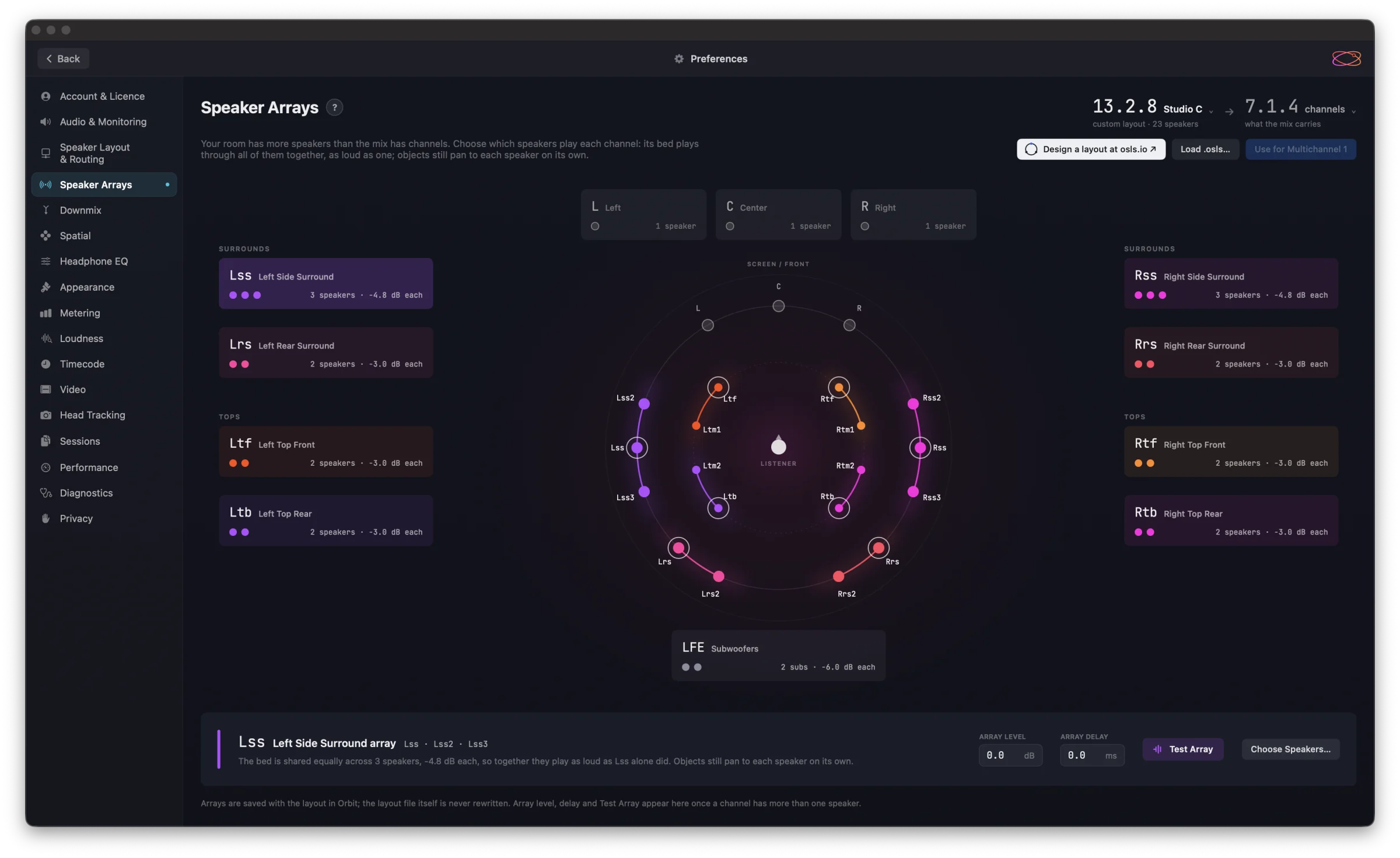
- Group speakers into an array that stands in for one channel. That channel's sound plays through every speaker in the array together, as loud as one speaker would have been. Objects still move between the speakers individually.
- Each array has its own level and delay, and Test Array plays the test signal through the whole array at once.
- Choose what the mix carries — 7.1.4, 9.1.6 and more — and see which channels have speakers and which are only panned.
- Colour each array, and see them as solo and mute groups on the Monitor page.
- Load your room from an
.oslslayout file, or design one at osls.io.
See Speaker Arrays.
Speaker test
- A tone generator. Play pink noise or a sine wave — type any frequency from 20 Hz to 20 kHz, or pick 100 Hz, 1 kHz or 10 kHz — at the same level.
- An output meter shows the level reaching the speaker you're testing.
- No more clicks when you move the level slider.
- The panel fits your room, from stereo to 64 speakers.
See Speaker Test.
Markers (Pro)
- Marker names on the timeline, beside each marker's number. Close markers shorten their names so they never overlap; hover a marker for its full name.
- A Markers tab in the Timeline's right-hand panel lists every marker. Click one to jump to it, double-click to edit it.
- Markers have a row of their own at the top of the timeline, so a loop region never covers their names.
See Markers.
Preferences
- Every Preferences pane has been redesigned, from Account to Privacy.
- Headphone EQ: search for your headphones in a dropdown list.
- The routing matrix's Full Window opens at full size, in the same style as Preferences.
And
- Send Us Feedback in the Orbit menu. We'd love to hear from you.
Improved
- Timeline clicks land exactly where you click, at any zoom. Before, a click could land a little behind the pointer, more so towards the right-hand end. The edit cursor now sits exactly on the playhead, and a new marker keeps the playhead's exact time.
- A new timeline ruler: the playhead and edit cursor at the top, then markers, then the loop region, then the timecode, which shades under the loop region. See Timeline View.
- Smoother waveforms. Dragging the track-name column no longer lags, and waveforms no longer draw as hairlines or double up.
- Create Session from Preview shows its progress — how much of the audio has been copied, how long is left, and a Cancel button. It copies your audio once instead of twice, so it's quicker.
Fixed
- IAMF waveforms showing as silent. An IAMF file scanned in the background could show no waveform and every lane silent, although it played normally.
- Waveforms drifting on long files. On files longer than about five minutes the waveform could run ahead of the audio — by over a second by the end.
- The timeline vanishing while you resized the window.
- Orbit freezing while creating a session from a preview.
- The session name staying "Untitled Session" after Create Session from Preview or Save As.
- The routing matrix's Full Window opening a few points wide.
Waveforms are redrawn once the first time you open each file in 1.5.9, which clears out the silent and drifting ones.
1.5.8 — multichannel output and IAMF 2.0 profiles
Released 2026-10-12.
A fix release: multichannel output that came out as stereo, and IAMF exports brought in line with the final IAMF 2.0 specification. It runs the current Orbit audio engine.
Fixed
Multichannel output stuck at two channels. After using Orbit on a two-channel device — AirPods, or your Mac's speakers — and then going back to your interface, Multichannel monitoring could come out of outputs 1 and 2 only, as a stereo fold-down, while the footer still showed 7.1.4. It stayed that way across relaunches until you switched speaker layout and back.
When a device can't carry your layout, Orbit steps the output down to fit it. It never stepped back up. It now does: as soon as the output device can carry your layout again — when you pick it, when you switch to Multichannel, and when Orbit opens — monitoring returns to the full layout. If you're affected, opening 1.5.8 fixes it; there's nothing to reset.
IAMF exports follow the final IAMF 2.0 profiles (Pro)
IAMF 2.0 was ratified in August 2026. Under the final specification, object-based audio needs the Advanced-1 or Advanced-2 profile — Base-Enhanced is the IAMF 1.1 profile and can't carry objects. Orbit used to label object exports Base-Enhanced.
- Profile now defaults to Auto. Orbit picks the profile your export needs: Base-Enhanced when no objects are kept, Advanced-1 when they are, and Advanced-2 for larger files (more than 18 elements or channels). The Esfera and Full Master presets use Auto.
- The Profile picker lists every profile — Auto, Simple, Base, Base-Enhanced, Advanced-1 and Advanced-2.
- Choosing a profile that can't hold your objects tells you why, and Export stays off until you pick a profile that can, or fold the objects into a bed or scene. Orbit never changes the profile behind your back.
- IAMF export is faster. The loudness check that keeps an export from coming out louder than your master no longer renders the programme twice through the headphone renderer.
- Files with objects need an IAMF 2.0 player. Players that only support IAMF 1.1 can play object-free exports; Auto keeps those on Base-Enhanced.
Installer
- A new installer window, in the same style as Orbit Lite's. One download installs Orbit for both Standard and Pro — your licence decides which you get.
- The window opens at the right size. It used to be cut short at the bottom.
1.5.7 — speaker rooms
Released 2026-09-16.
A release for speaker rooms. Change layout without leaving the main window, calibrate your speakers once and keep that calibration on every layout, save it as a Room, test your wiring from Preferences — and keep a library of your own HRTF profiles.
No engine changes — this build runs the same OrbitCore as 1.5.6.
Change speaker layout from the sidebar
In the Monitoring tab with Multichannel selected, Spatial Options now shows your speaker layout as a menu. Pick another and Orbit switches straight away — routing, meters and the footer follow. Custom .osls layouts are listed alongside the built-in ones, and Configure Layout & Routing underneath opens Preferences for everything else.
If your interface can't carry the layout, Orbit now says so: "EVO8 has 6 output channels. 9.1.6 needs 16 — select an output device with at least 16 outputs to monitor this layout." Previously picking a layout wider than your interface quietly monitored a narrower one with no explanation.
Speaker test, for Standard and Pro
Preferences ▸ Speaker Layout & Routing has a new Speaker Test section. Click a speaker and it plays pink noise from that speaker alone, at the −20 dBFS calibration reference with a ±12 dB level trim, so you can hear exactly which one answers.
- It checks the whole chain. The tone goes through your routing, so a speaker that stays silent or answers from the wrong place is a patch or a cable, not a guess.
- Routing in use lists what every output is carrying, and any speaker routed to no output is called out. An unrouted speaker sounds just like a dead one.
- Reset Routing to Straight-Through puts speaker 1 back on output 1, 2 on 2, and so on.
- Starting playback stops the test, and so does Esc. The level you set is remembered.
The speaker test in Setup ▸ Speaker Configuration… is no longer Pro-only either, and both places share one test: stop it in one and the other knows.
Calibrate a speaker once — every layout uses it
Speaker calibration now belongs to the room, not the layout. Set the distance and gain of your heights on 5.1.4 and they're the same heights on 7.1.4 and 9.1.6; each layout uses the speakers it has, and switching layout keeps every speaker's calibration with that speaker.
- Existing calibrations are merged into the room by speaker. Where two layouts disagreed, the layout you're monitoring when you first open 1.5.7 wins.
- Reset to Defaults resets the speakers in the current layout only.
- Fixed: switching layout used to leave the previous layout's delays and gains on whichever speakers took over those outputs, and calibration only reached the engine once you'd pressed Apply. It now follows each speaker, from launch onwards.
Time alignment that aligns
Delays are now worked out from your distances the way a room is actually aligned: the furthest speaker is the reference at 0 ms and nearer speakers are held back to match it. Orbit used to delay each speaker by its own distance, which delayed the far speaker most — the opposite of alignment — and added nearly 6 ms to every channel by default.
The new Delay Table (Speaker Configuration ▸ Physical) lists every speaker with its distance. Type them in, press Auto-Calculate Delays, and the whole layout is aligned at once. Nothing changes a delay behind your back: distances are just numbers until you press it. A speaker you've set by hand keeps its value and is marked in the table.
Rooms
Save the whole calibration as a named Room — "Studio A", "Mix position", "After the move" — with Save, Save As…, Load and Delete. Loading a room applies it straight away to whatever layout you're on. Rooms are separate from routing presets, and Save lights up when there's something unsaved. See Speaker Configuration.
Your own HRTF profiles
Preferences ▸ Audio & Monitoring ▸ HRTF Library — import .sofa profiles and keep them.
- Import SOFA… copies the file into Orbit's own folder, so moving or deleting the original doesn't break the profile.
- Imported profiles appear in the HRTF menu by name, in their own section under the built-in ones — no more anonymous "Custom SOFA" entry.
- Your choice is restored at launch. Previously a custom HRTF was forgotten on quit and monitoring reverted to a built-in profile without saying so.
- Rename, remove, or go back to a built-in profile whenever you like.
The HRTF menu is available in the monitoring sidebar, in Preferences, and now in Virtual Studio, so you can A/B profiles while a virtual speaker is sounding.
The HRTF quality selector is gone — binaural always renders on the interpolated grid, which is what it was set to. The legacy 12-direction path has been retired.
Speaker Configuration, tidied
- The window is bigger and both tabs fill it. The Physical tab has a Side View beside the top-down one, the speaker list has room for long labels, and Cancel / Apply are no longer squeezed against the bottom edge.
- Apply stays open and only lights up when there's something to apply.
- Virtual Studio explains what it is — the virtual 7.1.4 room for headphone monitoring — with a button through to the physical tab, and it gained the same Save / Save As… / Load / Delete controls as Rooms, plus an HRTF switch.
- Selecting a speaker no longer resizes the panel in either tab.
Fixed
- Virtual Studio's Ls and Rs speaker tests were silent. The virtual model names the side speakers Ls/Rs while the renderer calls them Lss/Rss, so those two buttons did nothing. The Virtual Studio test also followed your interface's channel count — on a 6-output interface the height speakers couldn't be tested at all, although they're virtual.
- Typing a room name only registered the first letter, occasionally.
- Picking a layout in the Speaker Configuration window changed nothing elsewhere; Preferences, the sidebar and the routing patch stayed on the old layout.
Keyboard shortcuts
Two shortcuts moved off combinations macOS already uses:
| Was | Now | |
|---|---|---|
| Show Object Details | ⌥⌘D (hides the Dock) | ⇧⌘D |
| Show Object Grid… | ⌥⌘G | ⇧⌘G |
1.5.6 — a roomier Overview
Released 2026-08-26; build 4 on 2026-08-27.
A look-and-feel release. The Overview page and footer lose their panel boxes and get the room back, Activity gains a second way to show objects, the Inspect sidebar is rebuilt to stay readable at high object counts, and the level at which an object counts as "active" is now yours to set.
No engine changes — this build runs the same OrbitCore as 1.5.5.
Build 4 replaces build 1
Looping was broken in the first 1.5.6 build: you could draw a region but couldn't turn looping on. That's fixed, along with a stale device picker in Preferences, and there's a new Diagnostics panel. Orbit will offer you the update automatically.
A roomier Overview
Every panel used to sit in a rounded box, several of them holding a second box. That chrome is gone, replaced by a title and a hairline, and the page now fills the window instead of stopping partway down it.
- The session waveform runs edge to edge — around 96 px wider on a typical window.
- The 3D scene more than doubles in height.
- The Session Overview title carries format, channel count and duration.
- The footer is one flat strip, so the spectrum stretches the full width between the meters and the loudness block.
Activity: hexagons or a grid
Two ways to show your channels and objects, switched from the Activity header on both the Overview page and the Timeline inspector:
- Hex — the honeycomb, now capped so a 7.1.4 bed doesn't become a handful of enormous tiles.
- Grid — a numbered dot matrix in fixed rows of ten, the layout immersive renderers have used for years. Stays readable where the honeycomb becomes a wall of shapes.
A bigger 3D scene
- Fill the row — a button in the Scene header expands the 3D view to the full width, stepping Activity aside. Press again to bring it back.
- Zoom — scroll or pinch. It stays pivoted on the listening position, so you orbit the sweet spot rather than drifting off it.
- The Small / Medium / Large buttons have gone from the Overview's Scene header (the scene already fills that space) and remain in the Timeline inspector.
Quiet objects no longer disappear
Audible-but-quiet objects could read as inactive — dimmed in the sidebar, missing from the 3D scene. The cutoff was fixed at roughly −30 dBFS, which isn't quiet at all. It's now −62 dBFS by default and adjustable in Preferences ▸ Appearance ▸ Object Activity.
Objects also fade around that level instead of blinking: the scene used to react to the raw, moment-to-moment level, so anything near the cutoff flickered. Expect more objects lit than before — that's the fix; raise the slider if you preferred the old behaviour.
A clearer object list
Object rows in the Inspect sidebar read like the bed banks: name, solo and content group on one line, with ATU id, live position, width, importance and gain behind a disclosure arrow. View ▸ Show Object Details (⌥⌘D) opens them all at once. (Since 1.5.7, ⇧⌘D.)
Silent channels now say so. Once a file is scanned, any track sitting below −85 dBFS for the whole file carries a dashed SILENT tag — or "4/12 ch silent" when only some channels are dead — on bed banks and object rows. Dashed, so it can't be mistaken for the live activity dim.
The Orbit mark, in orbit
Opening a file — and creating a session — now shows the Orbit logo instead of the old blue orb, with the satellite ring running its orbit and a short trail behind it. Same moment, our mark rather than a generic pulse.
Panels have a sensible minimum
Both side panels stop at a width that still fits their contents, and share the same minimum. If you had either dragged narrower it will widen itself on first launch — the new floor, not a glitch.
A Diagnostics panel
Preferences ▸ Diagnostics — a read-only page showing what Orbit and your Mac are actually doing: render load, render times, underruns, buffer and sample rate, the output device and layout, and your machine's CPU, memory and thermal state. Copy puts the lot on the clipboard for a support ticket, or Email to Support opens a message with it filled in.
It never includes file paths — the loaded file's name, never where it lives on your disk. See Diagnostics.
Fixed
- Looping couldn't be switched on (build 4). Drawing a region worked, but Playback ▸ Enable Loop stayed greyed out and the L key did nothing. Dropping a marker after drawing the region was the only way to wake it up. Region edges and moves were affected the same way.
- Drawing a region is now undoable (build 4). ⌘Z used to skip straight past it.
- The output device picker showed the wrong interface (build 4). Changing your interface in Preferences ▸ Audio & Monitoring switched the audio correctly, but the menu carried on displaying the previous device until you left the panel and came back. There's also a new Refresh button — plug an interface in with Preferences open and it appears without a restart.
- Inspecting a track, then opening another file, left the timeline blank with no way back to All Tracks — the button did nothing and only reloading recovered it.
1.5.5 — sign in to Orbit
Released 2026-08-20.
Orbit 1.5.5 is a stable release built around a new way in: sign in to Orbit with Apple, Google, or your Orbit account, and your licence — or a free trial — finds you. It also brings a round of quality-of-life improvements to the IAMF Export graph, and the first fully tested build on our path to Eclipsa Audio certification.
Sign in — for trials and licence holders alike
You can now sign in with Apple, Google, or your email and password to retrieve your licence — no more typing licence keys (though you still can, exactly as before). Signing in shows every licence on your account, with live device-seat usage, and activating this Mac is always an explicit click — nothing spends a seat on your behalf.
- Start a free 14-day Pro trial in the app — sign in, one click, no card required.
- Organisation seats appear automatically, labelled "Provided by" your organisation — no more device keys.
- Manage everything in one place — the licence window is now a full account page (switch licence, sign out, deactivate), with the same controls in Preferences ▸ Account & Licence.
- Signing out or deleting your account now properly frees this Mac's device seat.
This matches the new sign-in across all our apps, including Orbit Lite for iOS. See Licensing.
Loudness
A new Immersive measurement target — −18 LUFS, ±1 LU — for immersive delivery workflows that must hit −18 integrated. Pick it in Preferences ▸ Loudness or from the footer's target pill.
IAMF Export Graph (Pro)
Quality-of-life improvements across the board:
- Restore silent sources. Channels that are auto-discarded as silent can now be brought back — right-click the discarded source and choose Restore Silent Source (works on a multi-selection too). Restored sources come back unrouted, ready to patch wherever you want them.
- Reset Graph. A reset button now lives permanently in the graph toolbar — with an "Are you sure?" step, and fully undoable — returning routing, groups and removed sources to the recommendation.
- A new light background mode for the graph canvas, remembered between sessions.
- Adding Mix Presentations is now undoable — as are renames, language changes and element membership edits.
- Fixed: disconnecting grouped ADM sources and reconnecting them left the group silent — reconnected groups now send audio down the chain again.
Eclipsa Audio Certification
We've taken the first steps towards official Eclipsa Audio certification — this build is the first fully tested version for encoding certification.
1.5.3 — Export Audio
Released 2026-08-15.
Orbit 1.5.3 is a stable release built around one big new feature — a unified Export Audio window that renders your master to binaural or any speaker layout, in WAV, MOV or MP4, with loudness normalisation and optional video — plus a compatibility stereo track for IAMF MP4 exports so they play everywhere. It also rolls up everything that shipped in 1.5.2.
One window for every audio export
File ▸ Export Audio… (⇧⌘B) replaces the old binaural-only WAV export with a single, purpose-built export window — for ADM and IAMF masters:
- Render to what you need. Binaural (Orbit's own renderer, or an Apple Spatial Audio bounce) — or, with Pro, any speaker layout up to 7.1.4 straight from the layout library.
- WAV, MOV or MP4. Pick a container, and with Pro, mux your session video straight in — with a resolution/frame-rate readout and a live encode counter while it runs.
- Hit a loudness target. Normalise to −14, −16, −18 or −23 LUFS with a true-peak limiter and ceiling. Orbit measures first, shows you the programme loudness and the gain it will apply, lets you audition that gain over the monitor before you commit, and reports measured loudness, gain and limiter activity when it's done.
- Control the fold-down. Override the downmix trims for a single export (Monitoring or Custom) without touching your monitoring setup — only the trims the chosen fold actually uses are shown. (Removed in 1.5.9: exports now always fold as the standard specifies.)
- Export a range. ⌥-drag on the transport waveform to draw the range (with a live band and floating timecode readout), or type Start/End timecodes — SMPTE, including drop-frame, or decimal seconds.
- Name it, place it, go. File name and folder picker with an auto-name that follows your settings until you edit it; overwrite confirmation; a live-waveform progress footer with stage pills so you can see exactly where the render is.
- Faster. A 118-channel master that used to take ~52 s to bounce now takes ~9 s.
Binaural export is available on every tier; speaker-layout targets, video muxing and ranged export are Pro. Binaural export now derives from the same mixer bus as monitoring — so what you export (including any HOA content) matches what you hear. See Exporting.
IAMF files that play everywhere (Pro)
Exporting IAMF as MP4? A new Compatibility stereo track switch (on by default) muxes a standard AAC stereo track alongside the immersive stream. Ordinary players get stereo — the same fold you hear when monitoring in Stereo — while IAMF-aware players still pick up the full immersive mix. Hidden for .iamf files, where it doesn't apply.
Note, for YouTube upload, Compatibility Stereo track is not supported.
A loudness target for immersive delivery
The Cota loudness meter's delivery targets gain Immersive — −18 LUFS, ±1 LU, alongside Streaming, Apple Music, Podcast, EBU R128, ATSC A/85 and Netflix. Ideal for immersive content that must be delivered at −18 LUFS integrated. Pick it in Preferences ▸ Loudness or from the footer's target pill; the meter's Pass / Warn / Fail bands follow it. (The Export Audio window's loudness presets already include −18.)
Fixes & polish
- The Compatibility switch sits in the export settings grid with its siblings; its caption no longer truncates.
- Export timecode entry parses frame counts correctly at fractional frame rates, matching the on-screen formatter.
- Space bar plays/pauses in the export window; sample-rate readout added.
Also new since the 1.5.1 beta — what shipped in 1.5.2
1.5.2 went out on 3 July as a stable release without its own change notes. If you came from the 1.5.1 beta, this is what you also have (see also 1.5.2 below):
- Speaker Layout & Routing — a new Preferences panel with a patchbay: pick any of the 14 built-in speaker layouts, route any layout speaker to any (or several) device outputs, save routing presets, and set a stereo/binaural output pair. The old routing controls in the Audio panel are gone. Fast and steady even at high channel counts.
- Custom speaker layouts — load your own
.oslslayout file and it becomes a selectable monitor layout, validated on load and embedded in your session so a custom rig travels with the project. There's a link to the OSLS layout designer right from the panel. - Monitor page — a fourth workspace page for soloing and muting individual output speakers and building custom speaker groups, with top-down, side and 3D speaker views (cube or sphere frame). The footer Solos & Mutes are now bus-aware.
- A real coverage map — Preferences ▸ Spatial now shows a faithful top-down and 3D coverage view of your rig, and general-geometry panning means wide custom rigs are driven fully rather than through a fixed set of canonical roles.
- Powered-by-Cota loudness — the footer loudness block is redesigned around the Cota BS.1770-5 engine, with a new Preferences ▸ Loudness panel and a selectable 5.1 re-render method. (The 5.1 method choice was removed in 1.5.9.)
- Spec-accurate downmix trims — Preferences ▸ Downmix now offers per-fold-target Surround / Height / Centre trims and an LFE policy, plus a Stereo Fold-Down setting.
- Undo you can trust — timeline edits now use Orbit's own history: every edit is undoable, ⌘Z never silently drops, and a new History viewer (⌃⌘H) lets you jump to any point.
- IAMF export — ⌥-hover a patch cable to highlight it and ⌥-click to delete just that connection (undoable); the Multichannel monitoring row now follows your active layout.
- Menus & windows — the Debug menu is folded into the Orbit menu; Window menu fixes (Show Main Window, full screen); a PDF-export crash in packaged 1.5.1 builds is fixed.
- Faster main-thread performance on high-object-count ADM files; numerous metering and routing reliability fixes.
1.5.2 — "Anything Is Possible"
Released 2026-07-03.
OSLS — the Orbit Speaker Layout System
OSLS is a fully customisable speaker output system. Any layout you can describe, Orbit will output to it — up to 64 channels. 10.1.4, 22.2, Auro, a 30-speaker dome: if you can describe it, Orbit can drive it. Format mapping from ADM and IAMF is automatic.
OSLS replaces hardcoded, duplicated speaker tables with one human-readable .osls file per layout plus a small SDK — a single source of truth across native, browser, Windows and mobile. Build your own in the browser 3D designer at osls.io.
OSLS is fully open source under the Apache 2.0 license. The spec, JSON Schema, blessed layouts and reference SDKs (TypeScript, C ABI, Swift, WASM) are on GitHub. See OSLS.
Solo, mute and group — right on the speakers
The new Monitor view lets you solo, mute, and build custom groups across the new multichannel output system. Top-down, side and 3D views; click any speaker to solo it, or use the sidebar. The footer carries your custom solo groups across every view. See Monitor View.
Loudness, powered by Cota
The loudness section in the footer has been restyled and rebuilt to display Powered by Cota. Cota is our dedicated loudness plugin and framework — we've brought its look, feel and clarity into Orbit, and reworked the 5.1 re-render pathway for more accurate metering. See Loudness.
On immersive loudness
Orbit uses its own renderer — exactly what lets it play back any immersive format independently (ADM masters, EBU ADM, IAMF, and more). Loudness won't line up perfectly with another renderer such as the Dolby Atmos Renderer; that's the nature of immersive, so test on every renderer you can. Orbit's loudness is verified against the standard tests in ITU-R BS.1770, EBU R128 and more.
Also in 1.5.2
- The PDF viewer has been refined — bed- and object-only loudness selection has been removed, and everything from the 1.5.1 beta has been pulled across.
- You can now delete cable connections between ADM sources and IAMF elements in the IAMF / Eclipsa export window — hold Option and click a connection to delete it.
- Performance updates across the board — CPU and memory usage kept as low as possible.
1.5.1 — a rebuilt QC report
Released 2026-06-24.
This is the biggest Orbit update yet — a completely redesigned QC report, a reimagined IAMF export experience, wider speaker layouts, new analysis and metering tools, a faster video timeline, and new privacy controls.
A brand-new QC report
The PDF report has been rebuilt from the ground up. Cleaner, more readable pages, proper A4 pagination, an album cover and contents page, polished loudness and waveform graphics, and per-track or whole-album exports — with a live preview as you set it up.
- Orbit (Standard) gets the full rebuilt report for per-track export.
- Orbit Pro adds the complete album workflow — an album cover and contents page, whole-album export, and batch exporting.
See QC PDF Report.
IAMF export, reimagined (Pro)
Exporting IAMF is now a visual, drag-to-route experience. Build your mix presentations on a routing graph, with smart defaults for each destination, real-time meters, and a clear verdict bar that flags anything unrouted before you export — so nothing is dropped by surprise. Choose your loudness layouts and target destinations with confidence.
Wider speaker layouts
Orbit now supports 9.1.4 and 9.1.6 monitoring, with more reliable channel routing across larger rooms and interfaces.
New analysis & metering
A live spectrum analyser now fills the footer, and the output meters have been redesigned to be more compact and informative — including a 7.1.4 reference while monitoring in binaural and Apple Spatial.
A smoother video timeline (Pro)
Scrubbing is faster and steadier, and the clip bin now shows filmstrips you can skim, preview in the monitor, mark a sub-range on, and drag straight onto the timeline.
A cleaner workspace
The interface is now organised into focused Overview, Timeline, and Video pages, with a collapsible inspector — so you see exactly what you need for the task at hand.
New privacy controls
Orbit can now share optional, privacy-first usage data to help us see which features matter most and where to focus. It's never tied to your account, your name, or your projects, and it stays in-house: the data goes to Downlink, our own analytics platform built specifically for Orbit. No third parties, and we will never sell or share your data. You're shown a one-time notice on first launch and can opt out (or back in) any time under Preferences ▸ Privacy. See Data & Privacy.
Smoother session handling
Double-clicking a session in Finder now opens it correctly, opening a file cleanly replaces what you had open (offering to save first), and there's a clear way back to the home screen.
Fixes & polish
- The PDF export preview now opens at a sensible 100%, centred.
- SMPTE timecode follows the programme's video frame rate.
- Reworked Speaker Configuration and output-routing reliability.
- The New Session screen no longer jumps around when you resize the window.
- Numerous metering, waveform, and stability improvements throughout.
1.5.0 — the biggest release yet
Released 2026-06-22.
A full timeline (Pro)
Orbit Pro 1.5 puts your entire master on one timeline — beds, objects and stems as colour-coded waveforms, with per-track soloing, looping and markers. Spot a silent object, read automation, scrub anywhere. The 3D scene and activity grid dock to the right, live as the file plays. See Timeline View.
A built-in video editor (Pro)
Cutting a music video or podcast bound for IAMF / Eclipsa? Orbit Pro 1.5 includes a genuinely capable editor — fast scrubbing, proxy generation and up to 4K, with text and graphic tools. Don't need to edit? Drag your video in and go. See Video.
Quite possibly the world's most advanced IAMF export (Pro)
Take an ADM master to IAMF / Eclipsa through a full audio-routing graph. Go fast with auto-route presets — YouTube, the upcoming Esfera platform, Full Master — or take complete control. Hear exactly how the file will sound as objects fold into First-Order Ambisonics elements, and craft Mix Presentations for alternate mixes: no-vocals, different languages, and more. See ADM to IAMF Exporting.
Read any master at a glance
The Overview has been refined — session waveforms across the top, the activity grid and 3D scene side by side, full metering below — plus a brand-new real-time analyser: fluid, clear and detailed.
Object Grid (Pro)
Not new to 1.5 — it's been in Orbit Pro since 1.4 — but it deserves a mention. The Object Grid (View ▸ Show Object Grid…) is a dedicated Pro window that lays out every object in your master and traces its movement in real time. View trajectories as Polar (az/el) or Top-Down (room), alongside each object's waveform and live position. It's the fastest way to understand what a complex mix is actually doing.
Orbit, or Orbit Pro?
The marquee additions in 1.5 — the full timeline, the built-in video editor and the rebuilt ADM → IAMF export — are part of Orbit Pro. Orbit (Standard) lands the 1.5 foundation too, including OSLS output layouts, the Monitor page, speaker calibration, speaker arrays, the rebuilt QC report for per-track export, and performance refinements across the board — and remains the most flexible way to play back, inspect and QC ADM and IAMF masters in 7.1.4, binaural and stereo.
See the overview for the full breakdown.
Upgrading
Orbit 1.5 is a free update for existing users. The minimum macOS version is unchanged (macOS 14 Sonoma); Orbit runs natively on Apple Silicon. Existing Pro licence keys continue to work; Standard licences remain Standard and can upgrade to Pro at any time.
Looking for earlier release notes? See What's New in v1.4.2 and v1.4.0.