
Appearance
Head Tracking
When you turn your head while wearing headphones, the binaural soundstage normally moves with you — sounds that were in front shift to the side. Head tracking fixes this by compensating for your head movement, keeping the virtual speaker positions stable in space. It's like having a fixed sound field that stays put while you move.
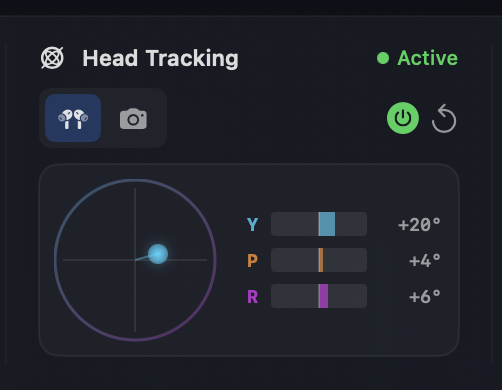
Orbit supports head tracking via AirPods (using their built-in motion sensors) or via your Mac's camera (using face detection).
In Apple Spatial Audio mode, head tracking is not controlled from the Head Tracking widget. Instead, select the Head Tracking or Head Tracking Personalised sub-mode from the Spatial Options panel in the sidebar settings. Head tracking is then handled directly by Apple's spatial audio engine using AirPods or Beats with motion sensors. Camera-based tracking is not available in Apple Spatial Audio mode.
How to use it
- Switch to Binaural Headphones mode.
- In the Head Tracking column, choose a source:
- AirPods when AirPods are the selected output device.
- Camera to use the Mac’s front-facing camera.
- Toggle Head Tracking on and press Recenter to set a neutral orientation.
- Watch the yaw/pitch/roll readout to confirm tracking is updating.
Tracking responsiveness
Camera-based head tracking has low latency (~80 ms end-to-end) and the UI visualiser updates at 40 Hz, so the 3D scene keeps pace with head movements. AirPods tracking is even snappier (~35 ms end-to-end).
Camera tracking tips
Nothing happening?
If you enable camera tracking but nothing happens, go to Setup → Camera Tracking Settings… and check that the correct camera is selected.
- Grant camera permission when prompted.
- Open Setup → Camera Tracking Settings… to:
- Select a camera from the dropdown (built-in front camera, external webcams, or other video devices).
- Adjust yaw/pitch/roll scaling to match your preferred tracking sensitivity.
- Preview the face detection to confirm the camera has a clear view.
- Camera tracking requires good lighting for reliable face detection.
- Keep your head centered in frame for the steadiest results.
- External webcams and USB cameras are supported - all cameras are mirrored for natural tracking.
Best practices
- Recenter after putting on headphones or changing posture.
- Disable tracking if multiple people are listening in the same room.
- Use a fixed head position when making critical judgments.
When it is unavailable
- If you are not in Binaural or Apple Spatial Audio mode.
- If the selected source is not available (e.g., AirPods not selected as the output, camera permission denied).
- Camera-based tracking is only available in Binaural mode (not Apple Spatial Audio).
INFO
Head tracking is optional. Orbit still provides binaural playback without it.