
Appearance
Output Routing & Devices
Output routing and device selection is handled in Preferences (⌘,). There are two main areas: Audio & Monitoring for device selection, and Speaker Layout & Routing for your multichannel output format and the routing matrix.
Device selection — Audio & Monitoring
Device selection lives in the Audio & Monitoring tab. Here you pick your output device, and the stereo output pair used for Stereo, Binaural and Apple Spatial output.
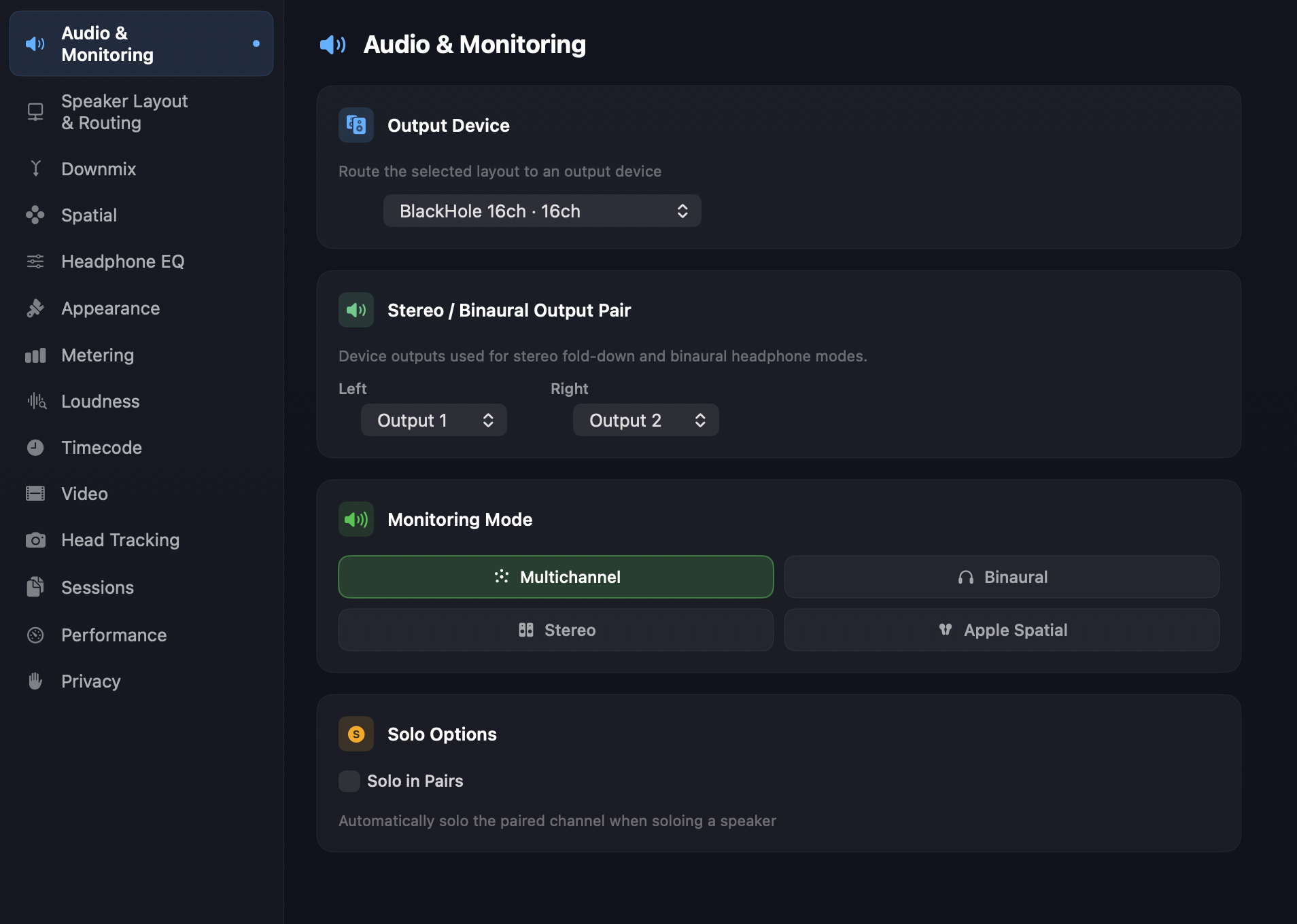
The stereo pair can be duplicated channels from your system, or set to dedicated outputs — for example 23/24 if you have a dedicated headphone or 2-channel feed. Apple Spatial Audio is typically set to outputs 1 / 2 using a pair of compatible headphones such as AirPods Max.
Speaker layout & routing
Your multichannel output format is chosen in the Speaker Layout & Routing tab. This uses OSLS (the Orbit Speaker Layout System) to define the location and channel ordering of your speaker system.
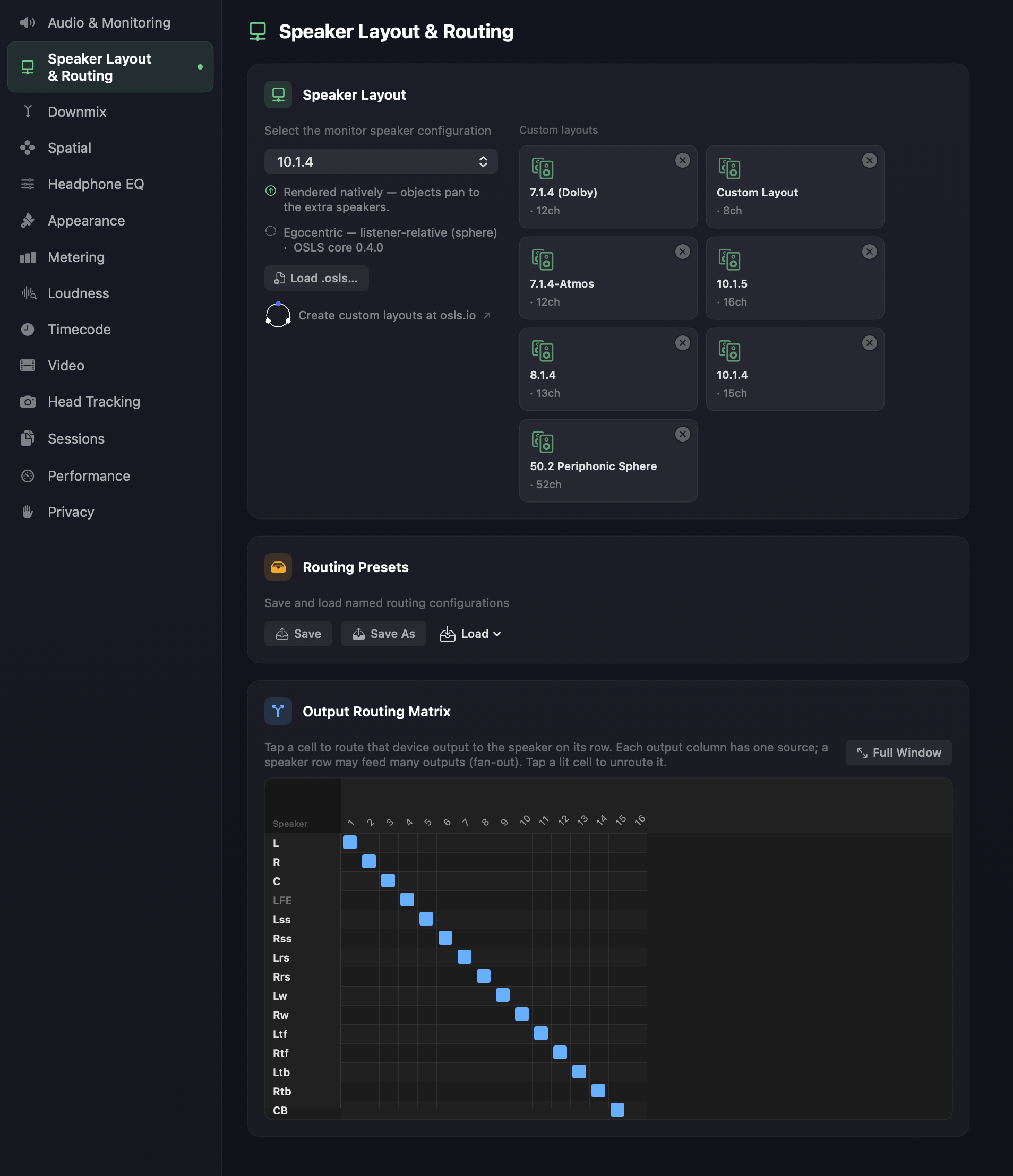
The power of OSLS is that Orbit doesn't care what system you're on — as long as you can describe it in the OSLS format, Orbit will output to it. This is what modern immersive formats like ADM and IAMF make possible, and OSLS is designed to make defining a rig easy, so we don't have to ship a fixed, curated set of speaker systems. Common formats are still provided ready-made — these are the Blessed Layouts. See OSLS for how to build or import a layout.
The routing matrix
Once you've selected an output format (or loaded an .osls file), select it and use the routing matrix to patch your outputs to your device.
- Route individually — tap a cell to route that device output to the speaker on its row. Each output column has one source, but a speaker row may feed many outputs (fan-out); tap a lit cell to unroute it.
- Ripple route — hold Option to route sequentially across a 16-channel block in one action.
- 16-channel blocks — interfaces with more than 16 channels are shown in 16-channel blocks.
- Full-window routing — for large output devices making use of the full 64-channel output, expand the matrix into its own window for full-screen routing of complex setups.
Reset Routing to Straight-Through
Reset Routing to Straight-Through patches speaker N to output N for the current interface and layout. It's the quickest way back to a known-good starting point when a patch has got away from you.
Speaker Test
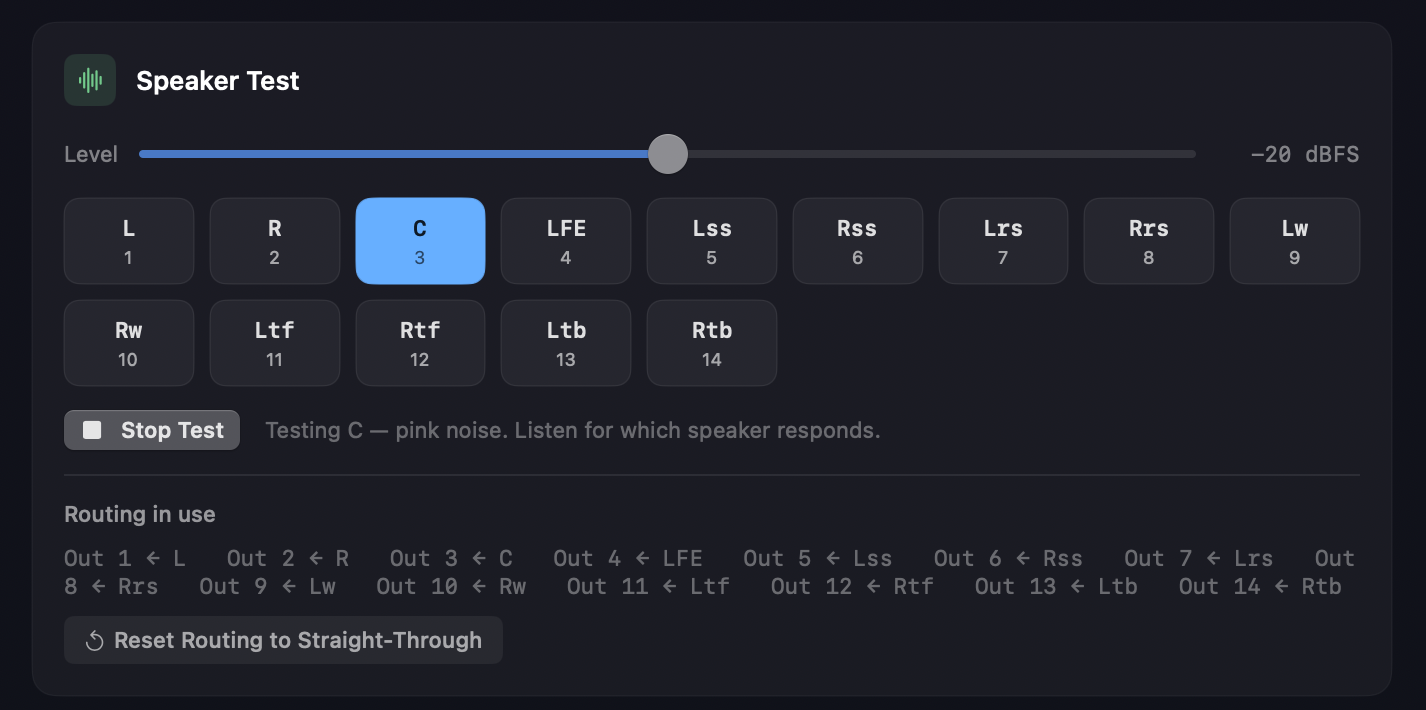
Under the matrix, Speaker Test sends pink noise to one speaker at a time, answering the only question that matters after a repatch — is my rig wired the way the patchbay says?
Standard and Pro
The speaker test is available in every edition.
- Click a speaker to hear pink noise from that speaker alone. Each button carries the output number that speaker is patched to.
- Level reads the noise level in dBFS, starting at the −20 dBFS calibration reference and adjustable ±12 dB (so −32 to −8 dBFS) if that's too loud or too quiet for your room.
- The tone follows your routing, so a speaker that stays silent — or answers from the wrong side of the room — is a patch or a cable, not a guess.
- Routing in use lists what every output actually carries (Out 3 ← C), and calls out by name any speaker routed nowhere, so a missing speaker is visible before you go hunting for it.
- Transport playback must be stopped to run a test, rather than layering noise over your programme.
When the device can't carry the layout
If the chosen layout needs more outputs than the interface has, Orbit shows the arithmetic — "Fireface UFX has 6 output channels. 7.1.4 needs 12 — select an output device with at least 12 outputs to monitor this layout."
This matters because, without it, monitoring quietly clamps to the widest layout that does fit: ask for 7.1.4 on a 6-output interface and you hear 5.1, with nothing on screen to say why. The warning appears wherever a layout is chosen — here, in the sidebar's Monitoring tab, and in the Speaker Configuration window — and a Go to Output Routing button brings you back to this panel.
Changing layout without opening Preferences
With Multichannel selected, the sidebar's Monitoring tab carries the same layout menu, plus a Configure… button that opens Speaker Configuration. Whichever place you change the layout, everything else follows — the matrix, the Monitor view and the engine.
Related
- OSLS — Orbit Speaker Layout System — define and import custom speaker layouts.
- Monitor view — per-speaker solo, mute and custom groups (Orbit Pro).
- Speaker Configuration — virtual studio positions for binaural, and physical room calibration.
- Audio Preferences — device, stereo pair and the HRTF Library.