Appearance
Text Generator
Pro
The Text Generator is an Orbit Pro feature.
Orbit Pro has several built-in text generators for adding basic text to your video project.
New in Orbit 1.5.10
- Titles that animate in and out, with curves you can edit.
- Burnt-in timecode — add a timecode window to any title, or use the Timecode template.
- Title text size is in points, measured on an HD frame, so a title looks the same on any picture size.
Text presets
Open the Text tab in the sidebar to choose a preset:
- Blank
- Title
- Caption
- Lower Third
- Title + Subtitle
- Timecode — a burnt-in timecode window over the whole programme. See Burnt-in timecode.
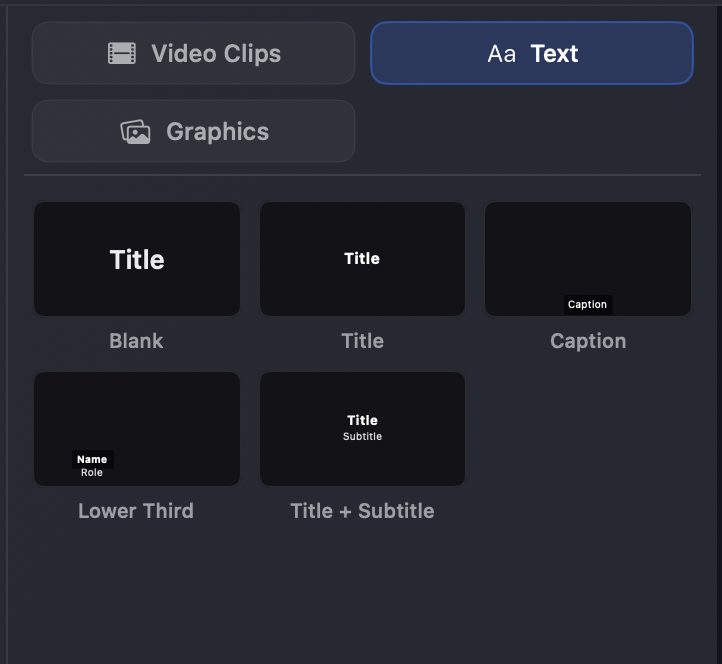
Title, Caption, Lower Third and Title + Subtitle come with an animation already set: the Title and Caption fade in and out, and the Lower Third and Title + Subtitle slide up and fade out. Change it in the Animation section.
Adding text to the timeline
To add a preset, click and drag it onto the video timeline. You can also click the preset to add it.
Once a title is on the timeline you can move the clip along it, and add a fade or keyframe as needed — just like any other clip.
Editing the text
To edit the text content, click the text generator clip on your timeline and open the right inspector sidebar.
Each text element has its own set of controls, and you can add or remove elements as needed. Every element can be individually positioned and scaled:
- Font — the typeface
- Style — bold, italic, underline
- Size — in points (see below)
- Colour
- Position — X and Y
Add under the element list adds another element: Add Text or Add Timecode.
Text size in points
Text size is in points, measured on an HD (1080-line) frame, as in Final Cut Pro. A 108 pt title looks the same on an HD, 4K or 8K picture: it fills the same share of the frame. Hover over the size to see its height in pixels on your canvas, for example 108 pt — 432 px on this 4320-line frame.
Animation
The Animation section in the inspector sets how a title arrives and leaves. One setting covers the whole title.
- Animate — In and Out: None, Fade, Slide Up, Slide Down, Slide Left, Slide Right, Pop or Typewriter. Typewriter is for the way in only.
- Length — how long the In and Out take, in seconds.
- Stagger — for a title with more than one element, the gap between one element's arrival and the next. The elements leave in the same order they arrived.
Once either menu is set to something other than None, a graph beneath them shows each element across the clip: rising as it arrives, holding, and falling as it leaves.
- Drag the curve to change its shape. The grips sit on the curve, so it bends through the pointer.
- Drag the end of a ramp to change how long it takes. Drag a lane to change the stagger.
- Double-click a ramp to enlarge it for editing, and double-click again to go back.
- Right-click for a preset curve: Smooth, Linear, Ease In, Ease Out or Ease In Out.
The way in and the way out each have their own curve, so shaping the arrival never changes the exit.
Burnt-in timecode
A timecode window shows exactly what Orbit's timecode counter shows, 2-pop included, burnt into the picture.
- Over the whole programme — drag the Timecode template onto the timeline. It spans the programme from start to end.
- In any title — select the title and choose Add ▸ Add Timecode.
A timecode element follows the counter's rate, drop-frame and preroll; its inspector says which, for example Follows the timecode counter — 25 fps, 2-pop. It's set in a fixed-width font, white on a 50 % black box, so the window doesn't move as the digits change.
Place puts it bottom Left, Centre or Right in one click, inside the title-safe area. You can also position it by hand like any other element.
Timecode windows are burnt into video exports.
See Timecode Preferences for the counter's format, frame rate and preroll.