Appearance
Preview Mode
Preview Mode is the standard way to open content in Orbit. Use File → Open File… or the Welcome screen to open a single ADM BWF or IAMF file for inspection and playback. This is the right mode for quick QC passes where you're stepping through one file at a time.
For working across multiple tracks in one session, see Sessions.
Opening a file
There are several entry points, all equivalent — they just suit different points in the workflow:
- Welcome screen → Open a file → Open file… — when you launch Orbit with nothing loaded, the Welcome screen offers a single-file open as one of its main actions (in Orbit Standard, the first one). The Welcome then carries you straight into the file. See The Welcome screen.
- File → Open File… (⌘O) — the standard menu path. Available with or without a session active, and it always opens the file in Preview Mode: if a session is open, Orbit closes it first (asking whether to save any unsaved changes). To add a file to a session instead, use File → Import Audio into Session… — see Sessions.
- Recent files —
File → Open Recent → Fileslists recently-opened files (sessions are listed separately). The Welcome screen also lists them under Continue.
The file you open is not copied anywhere — Orbit reads it in place. Moving the file on disk while it's loaded is fine; Orbit holds a security-scoped bookmark, not a hard reference.
Supported formats
- ADM BWF (
.wav) — Broadcast Wave with embedded ADM metadata (axml + chna chunks). The standard immersive master format. - IAMF (
.iamf) — raw IAMF bitstreams. - MP4-wrapped IAMF (
.mp4) — IAMF carried in an ISOBMFF / MP4 container. Orbit recognises and routes these through the IAMF decode path automatically.
If a file looks like it should work but doesn't, the loader surfaces a specific error rather than failing silently — most often it's a missing AXML chunk in a .wav that wasn't authored for ADM.
What you can and can't do
In preview mode, most of Orbit's features work the same as inside a session — the audio engine, monitoring modes, meters, 3D visualizer, waveform views, head tracking, and binaural rendering are all live.
What's missing in preview mode (because it's a single file, not a project):
- Playlists — preview mode is one file at a time; there's no "next track" to advance to.
- Saved loops and markers — you can set a loop region in preview mode (and, with Orbit Pro, place markers), but nothing is saved: preview mode keeps no state, so they're gone when you close the file, open another or quit.
- Pro-only Sessions features — Save Session and Save Session As… (Pro only) are disabled when you're not in a session. They light up the moment you promote preview to a session. The File menu's close item reads Close File (⇧⌘W) in preview mode and unloads the file back to the Welcome screen.
PREVIEW in the top bar
New in Orbit 1.5.10
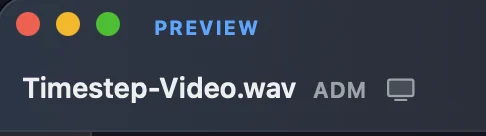
The mode is named in the top-left corner of the window, beside the traffic lights.
When a file is open without a session, the top-left corner of the top bar reads PREVIEW in blue, with the file's name and type (ADM or IAMF) beneath the traffic lights. It's a status indicator and, in Orbit Pro, a one-click action:
- Indicator — confirms you're in preview mode, so any loop region or markers you make aren't saved.
- Action — click PREVIEW (Pro only) to promote the current file to a full
.orbsessionbundle via Create Session from Preview…. The file you've already loaded and its waveform cache are copied into the new bundle, so there's no re-render — see Sessions: Creating a session. In Orbit Standard, resting the pointer on it explains that sessions are part of Orbit Pro.
Once a session is open, the corner reads SESSION in yellow instead. See Top Bar & Transport.
Nothing is saved
Opening a file in preview mode doesn't create a session or any temporary bundle — the file loads in place, and its waveform cache is written next to it (see Waveform Cache). Preview mode keeps no state between launches, so there's nothing to recover after a crash; just reopen the file.
When to graduate to a session
Preview mode is the right tool for one-off QC passes. Reach for Sessions when:
- You're working through more than one or two files in a sitting and want playlist navigation.
- You want to preserve markers, the loop region and view state across reopens.
- You're sharing a project with another QC engineer and want a self-contained bundle.
- You're using video sync, where the video edit list and sync settings need to persist.
Promotion is one click — PREVIEW in the top bar, or File → Create Session from Preview….
See also
- Sessions — the multi-track / persistent counterpart to preview mode.
- Sessions preferences — the auto-save toggle and temporary-bundle cleanup for sessions.
- Overview — the layout you see when a file is loaded.