Appearance
Video Programme Settings
Pro
Working with video is an Orbit Pro feature.
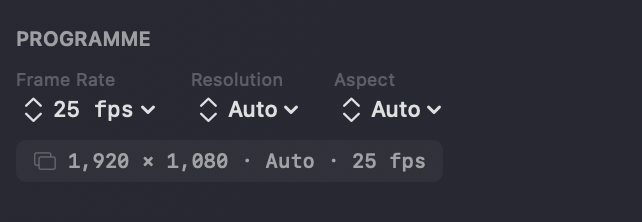
The Programme settings define the frame rate, resolution and aspect ratio of your video timeline. They sit at the top of the Video Clips panel in the Video View, below Add Video to Project — they appear once you've imported a clip (an empty bin just shows No Clips).
By default the frame rate is taken from your first imported clip (snapped to the nearest standard rate), Resolution is Auto — the largest source by pixel area, never smaller than 1920 × 1080 — and Aspect is Auto. The summary line beneath the controls shows the current resolution, aspect and frame rate. You can change any of these at any time to suit your project.
Frame rate
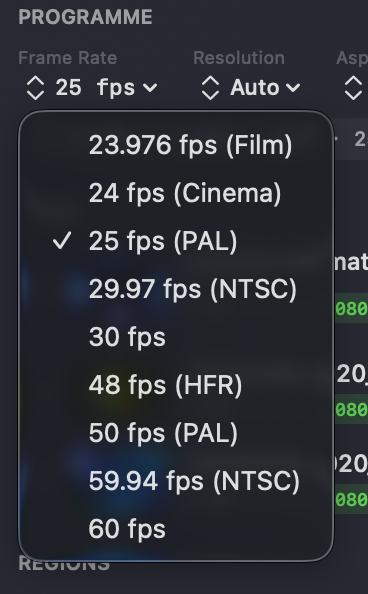
Choose the timeline frame rate:
- 23.976 fps (Film)
- 24 fps (Cinema)
- 25 fps (PAL)
- 29.97 fps (NTSC)
- 30 fps
- 48 fps (HFR)
- 50 fps (PAL)
- 59.94 fps (NTSC)
- 60 fps
Orbit doesn't interpolate or synthesise frames. Content below the programme frame rate plays at its native rate rather than being frame-generated up to match; content that supports the programme rate plays back at it.
Resolution
Leave it at Auto to follow your source, or set it explicitly:
- Auto
- 720p (1280 × 720)
- 1080p (1920 × 1080)
- 1440p (2560 × 1440)
- 4K UHD (3840 × 2160)
- 4K DCI (4096 × 2160)
- 6K (6144 × 3456)
- 8K UHD (7680 × 4320)
New in Orbit 1.5.10
1440p, 4K DCI, 6K and 8K UHD join the menu, and 4K is now 4K UHD. Each preset shows its size in the menu.
On a 360° timeline
While a 360° clip is on the timeline, the menu offers 360° sizes instead: Auto (follows your widest 360° clip), 4K 360° (3840 × 1920), 5.7K 360° (5760 × 2880) and 8K 360° (7680 × 3840). Each names one eye's size, so a stereo frame is larger. See The 360° canvas.
Aspect ratio
- Auto
- 16:9 — standard widescreen
- 9:16 — vertical (phone)
- 1:1 — square
- 4:3 — classic
- 2.39:1 — cinemascope
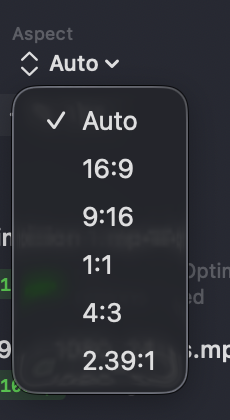
Square (1:1) and vertical (9:16) are supported for phone-based content — paving the way for the future of spatial content on mobile.
360° video sets its own shape
While a 360° clip is on the timeline, the canvas takes the 360° frame's shape (2:1 for a full sphere), and the Aspect field is locked and reads 360°, 360° stereo, VR180 or VR180 stereo. Your aspect setting isn't changed. It returns as soon as no 360° clip is on the timeline.
Video Output
Video Output sits on its own row beneath the other settings:
- SDR (Rec. 709) — the default.
- HDR (Rec. 2100 PQ) — shows highlights above SDR white on an HDR display.
It's saved with the session. Video exports stay SDR for now. See HDR output.
New in Orbit 1.5.10
HDR (PQ) output for the session.