
Appearance
Batch
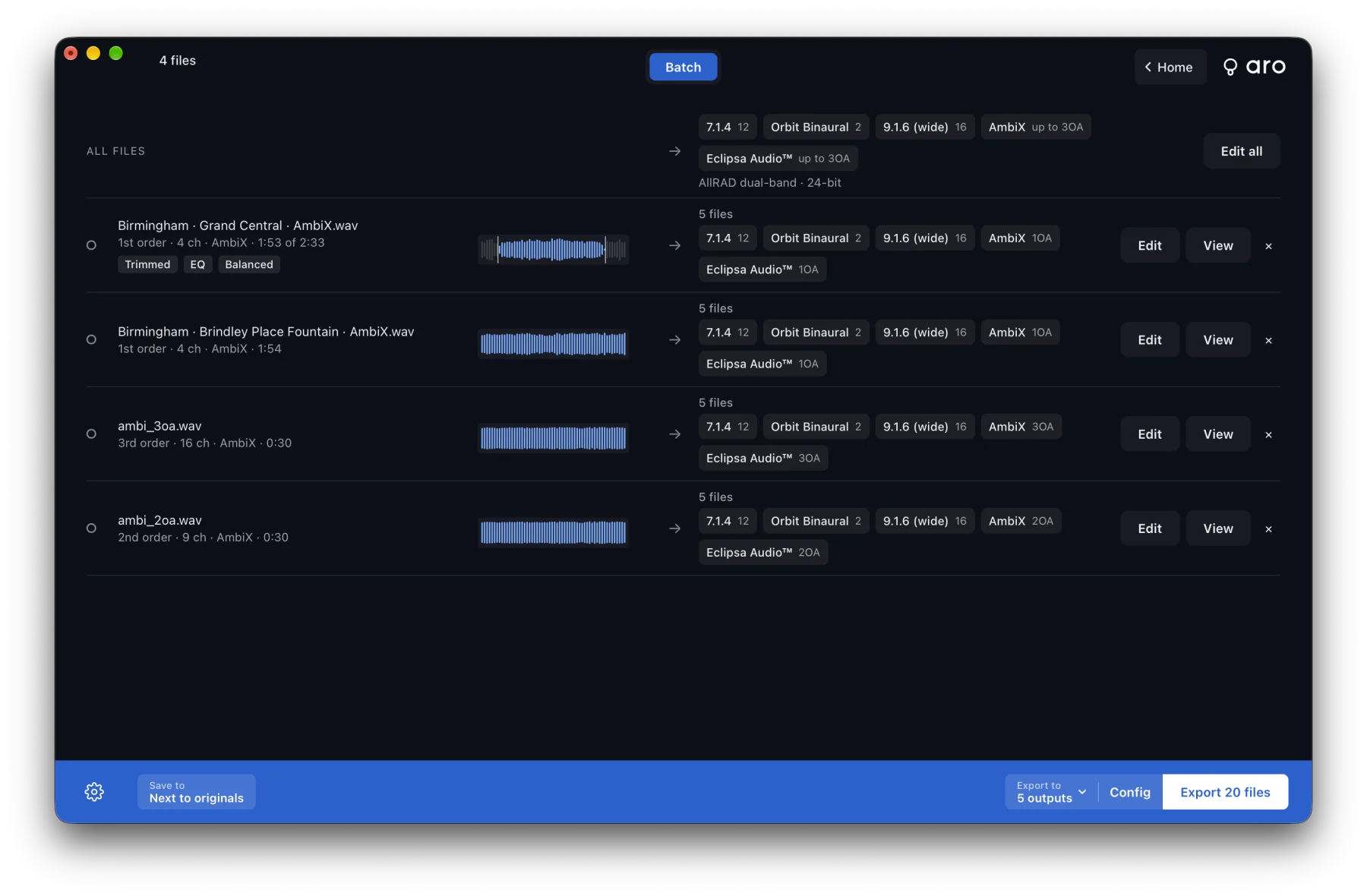
Export many Ambisonic WAVs in one go. A batch is a queue: files are written one after another, each with its own settings, each to every output you choose.
Adding files
- The Batch row on Home.
- Drag WAVs onto the Batch row, or onto the queue.
- Open several WAVs at once from Finder (Open With ▸ Aro), or drop them on Aro's Dock icon.
Two to four mono files arriving together first get the question What are these files? They may be one recording to combine. Choose Separate mono files to add them to the batch instead.
Each row
Each row is one recording. It shows:
- its name, and the files it becomes, for example "3 files · 7.1.4, 5.1, Orbit Binaural"
- anything else that's switched on, such as the sample rate, LFE, rotation or loudness, on a second line
- a tag for each edit it has: Trimmed, Loop, EQ, Balanced or Tamed
- the length it writes, for example "3:43 of 4:12", or "0:50 of 2:30, looped"
- a small waveform, with the range bright, the rest dim, the fades sloped, and a bracket over a loop
- a card for each output
The waveforms fill in as Aro reads each file.
The output cards
Each output gets a card with its name and its channels, or the order written for an Ambisonic or Eclipsa Audio™ file.
- A Mixer badge means that layout's mixer isn't at 0 dB.
- A tick means the file has been written.
- A red outline means that output is skipped for this file, with the reason underneath.
Point at a card to see its file name, or why it's skipped. The ALL FILES row shows the batch's cards too.
Outputs
One Export to list covers the whole batch. Press Export to in the footer, or use Edit all ▸ Export to. It's the same full page as for one recording.
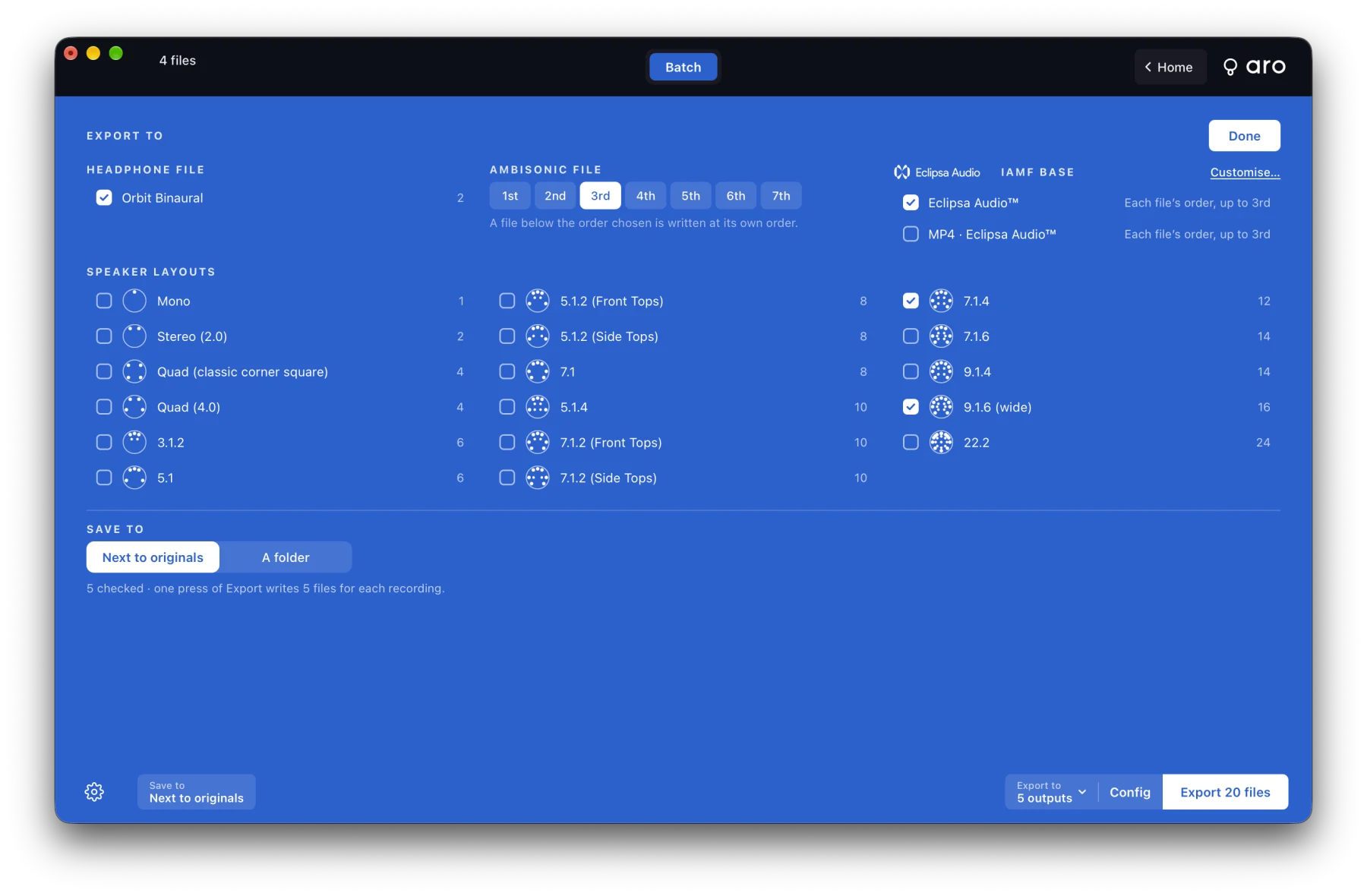
- Orbit Binaural, the 2-channel headphone file.
- Ambisonic file, from 1st to 7th order. A file below the order you tick is written at its own order, and named for the order written.
- Eclipsa Audio™, the
.iamfand the MP4. Each file is written at the order chosen, or at its own when that's lower, up to 3rd. Customise… sets the order and codec for the whole batch. Each file's own name labels its scene. See Exporting. - Speaker layouts and your custom layouts.
- Save to, at the bottom. See Where files go.
Every file is written to every ticked output: twelve files and three outputs make thirty-six files from one press.
The list starts from Preferences ▸ Decode ▸ Export to. It never takes the list from a recording you have open.
Settings
- ALL FILES ▸ Edit all sets the batch default: format, decode mode, orientation, LFE, bit depth, sample rate and loudness.
- Edit on a single row overrides the default for that file. A file you haven't touched follows the default.
Each file takes its output's own mixer as it starts. If a layout in use has a muted channel or a silent master, Aro asks once before it begins.
An output that can't be used for one file is skipped for that file, with the reason on its card and its row. The file's other outputs are still written. An Ambisonic or Eclipsa Audio file is never skipped for being above a file's order: it's written at the file's own order instead.
Each file's own edits
View on a row opens that file. Trim it, loop it, EQ it, balance it or tame it on the Processing tab, then go back with ‹ Batch. The batch writes that file with those edits, and only its range. Viewing it again opens it with them.
A file you never view is written as it was recorded. Edits belong to one recording, so Edit all never sets them.
Removing the row, New batch and going Home forget the edits. They aren't saved in a batch session.
Choosing formats
A 4-channel file could be several things, so it waits with Choose format until you pick one. For a folder of the same recording, pick a format for one file and choose Use for all files with N channels. A format chosen in Edit all also goes to every file still waiting.
A file Aro has been asked about before arrives with its remembered format already chosen. You can still change it.
Where files go
Save to is on the Export to page: Next to originals (the default), or A folder, with Choose… to pick it. The footer shows where the files will go, for example Save to · Next to originals, and clicking it opens the page.
Each file is named <file>_<output>.wav. If that name is taken, the file gets -2, -3 and so on. A batch never overwrites anything.
Running a batch
Press Export N files in the footer to start. The footer shows Exporting 1 of N and the overall progress, and each row shows the output being written and its progress. Queued rows stay editable while the batch runs. The file being written is locked.
- ✕ on a row removes that file from the batch.
- Cancel stops the running file and marks the rest cancelled. Finished files stay. Only unfinished temporary files are removed.
- A file that fails (moved, an unwritable folder, a full disk) shows the reason, and the queue carries on. Failed rows can be exported again.
When the batch is done, Show in Finder selects every file it wrote. Done returns to the queue. New batch clears it and opens the file dialog.
Viewing a file
View on a row opens that file as the batch holds it, with its order, its chosen format and its own edits, and doesn't ask "What is this file?" again. ‹ Batch sits where Home would be, so you can't drop out of the batch by accident. ⌘W goes back to the batch too. You can look at a file and leave while the batch runs.
Saving a batch
File ▸ Save keeps the batch as a session: the files, the settings for All files, each row's own settings and the destination. Each file's own edits aren't saved in it yet.
Limits
- Files are written one at a time.
- Batch takes Ambisonic files only, not Mid-Side, Double Mid-Side or A-format recordings.
- Leaving with Home while files are still waiting asks first, because it clears the batch.
- A hidden temporary file left by a crash isn't cleaned up. The batch writes
Name-2.wavbeside it.