
Appearance
Views & Playback
The views
Once a file is open, the tabs in the top bar switch between five views and the Processing tab. Every view is live while the file plays.
| View | Shortcut | What it shows |
|---|---|---|
| Sphere | ⌘1 | The sound field on a sphere around the listener, glowing where the sound comes from. |
| Map | ⌘2 | The same field unrolled flat, azimuth across and elevation up, with an optional heatmap. |
| Speakers | ⌘3 | The speakers of the layout you hear, from above or from the side, with a level for every speaker. |
| Head | ⌘4 | Top, front and side rings around a head, and a direction-over-time strip. |
| Mixer | ⌘5 | A fader and a mute for every output channel. See Mixer. |
| Processing | ⌘6 | Trim & fades, EQ, Balance and Tame, plus Analyse. See Processing. |
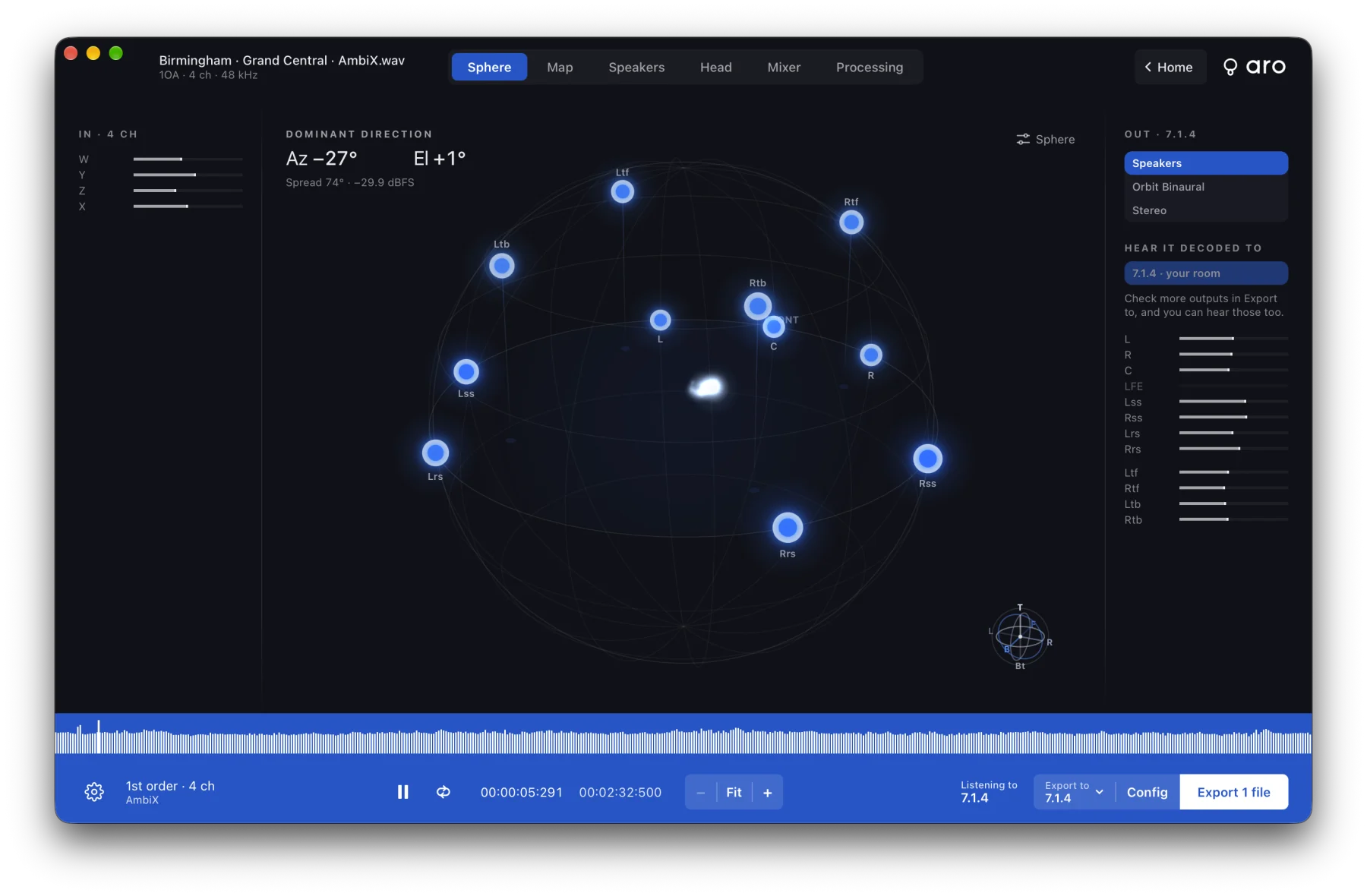
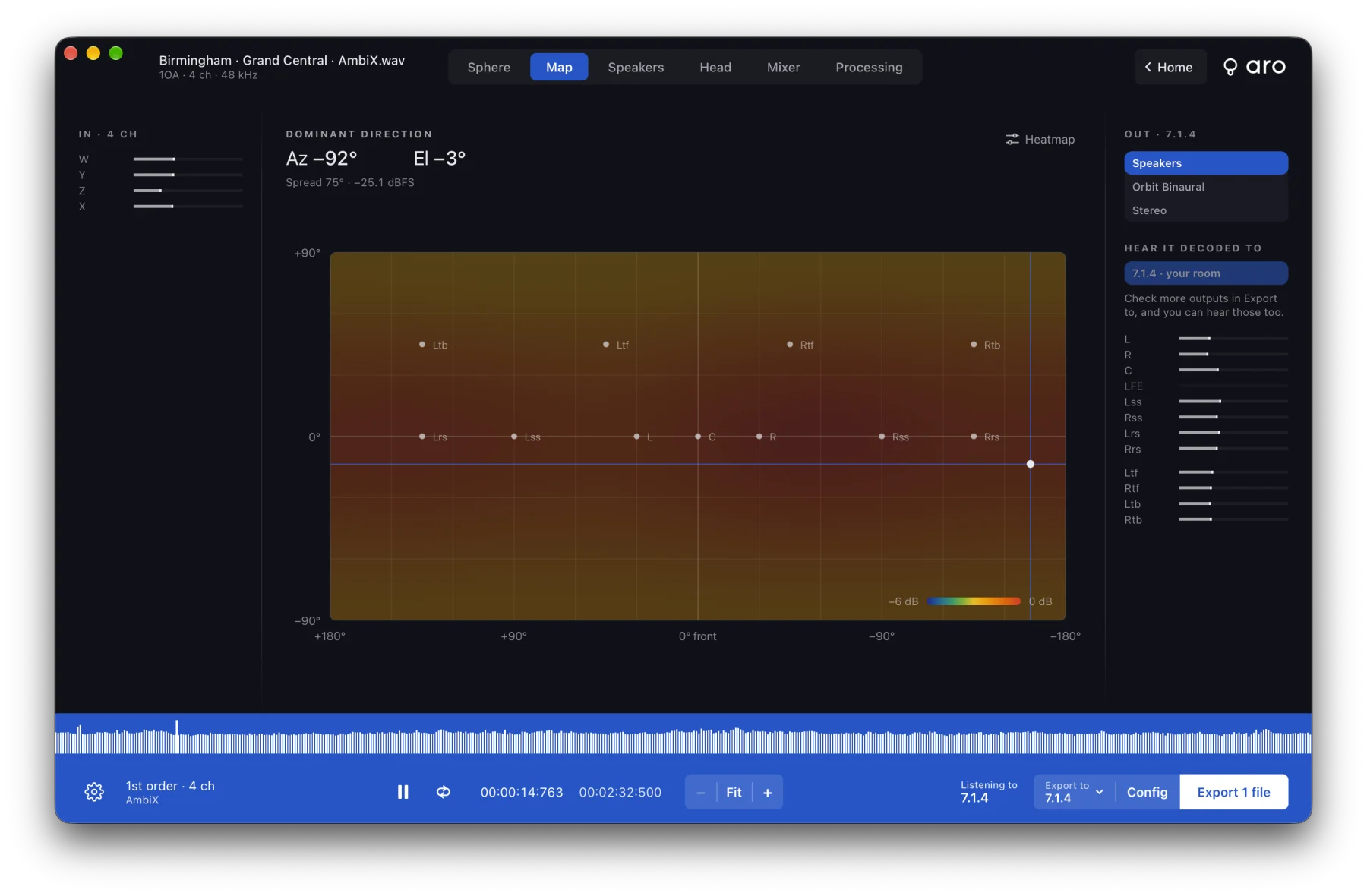
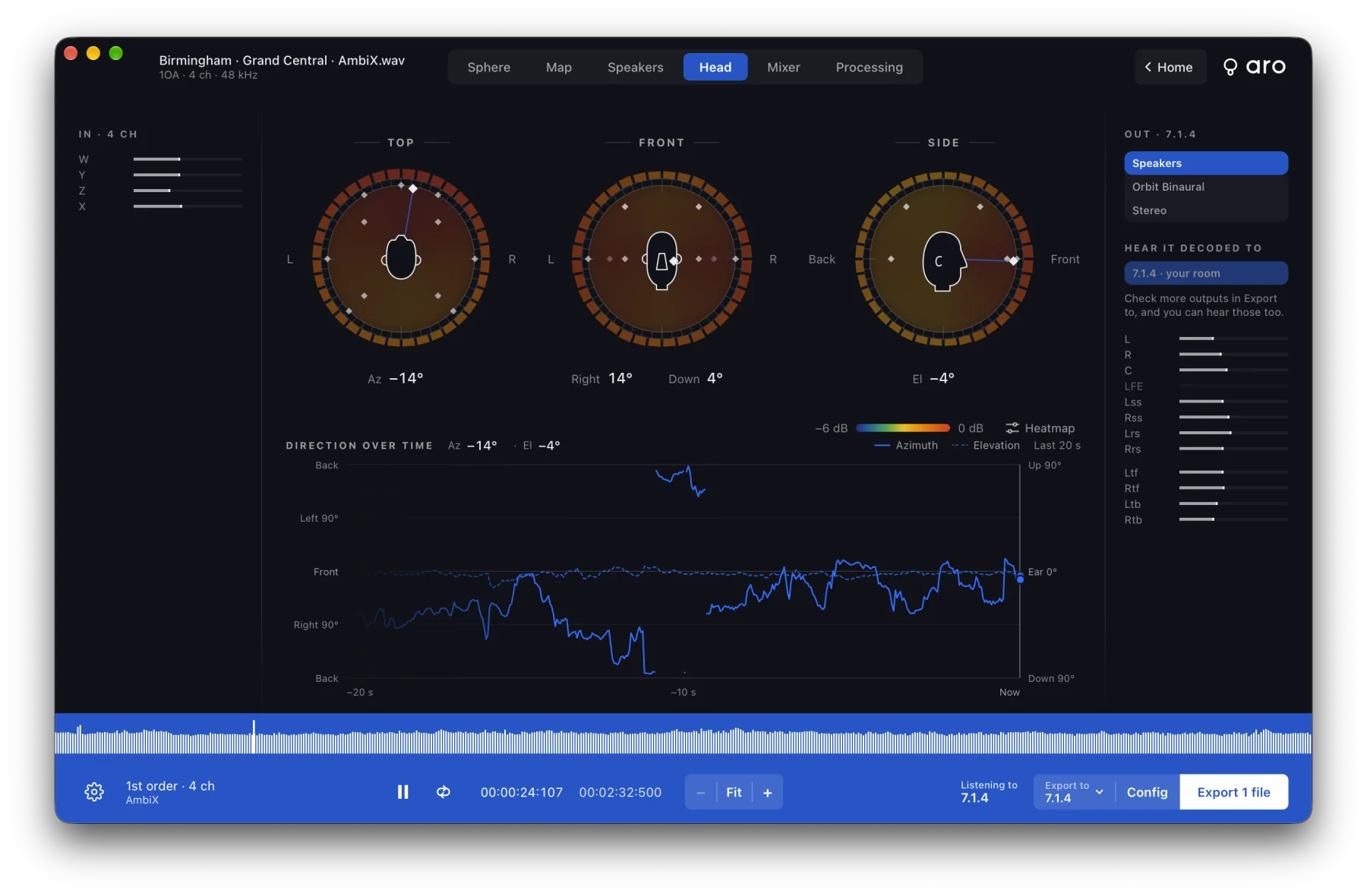
The layout you hear
The views draw the layout you're hearing. Usually that's your room. When you pick another output under Hear it decoded to on the OUT meters, Speakers, Sphere, Head and Map draw that layout's speakers instead, and the OUT meters list its channels. A line at the top left of the stage says so, for example Showing 9.1.6, what you hear over Your room is 7.1.4. Clicking a speaker solos or mutes that layout's own channel. See Monitoring.
Orbit Binaural isn't a speaker layout, so while you hear it the views keep drawing your room.
Speakers: Top and Side
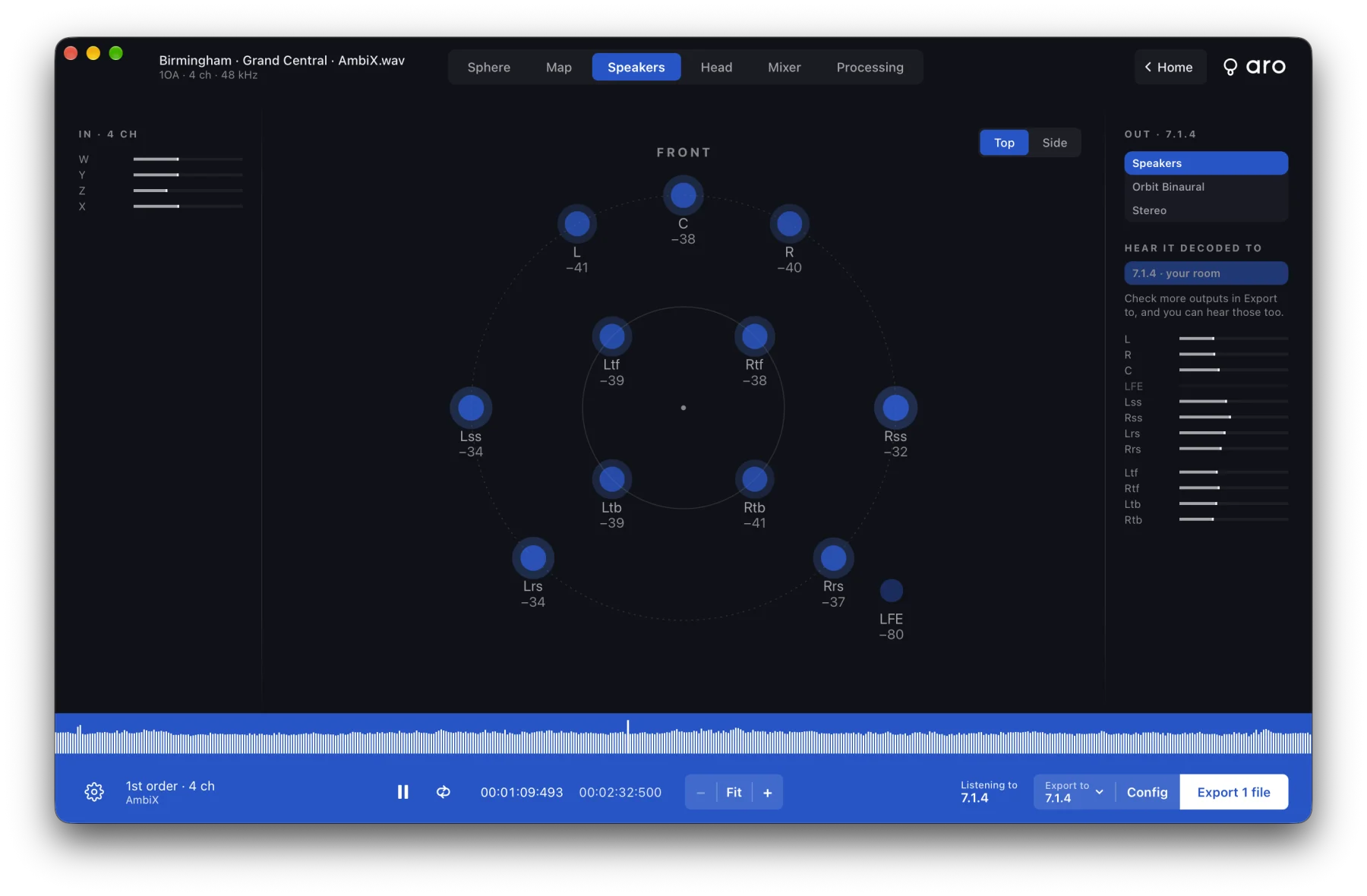
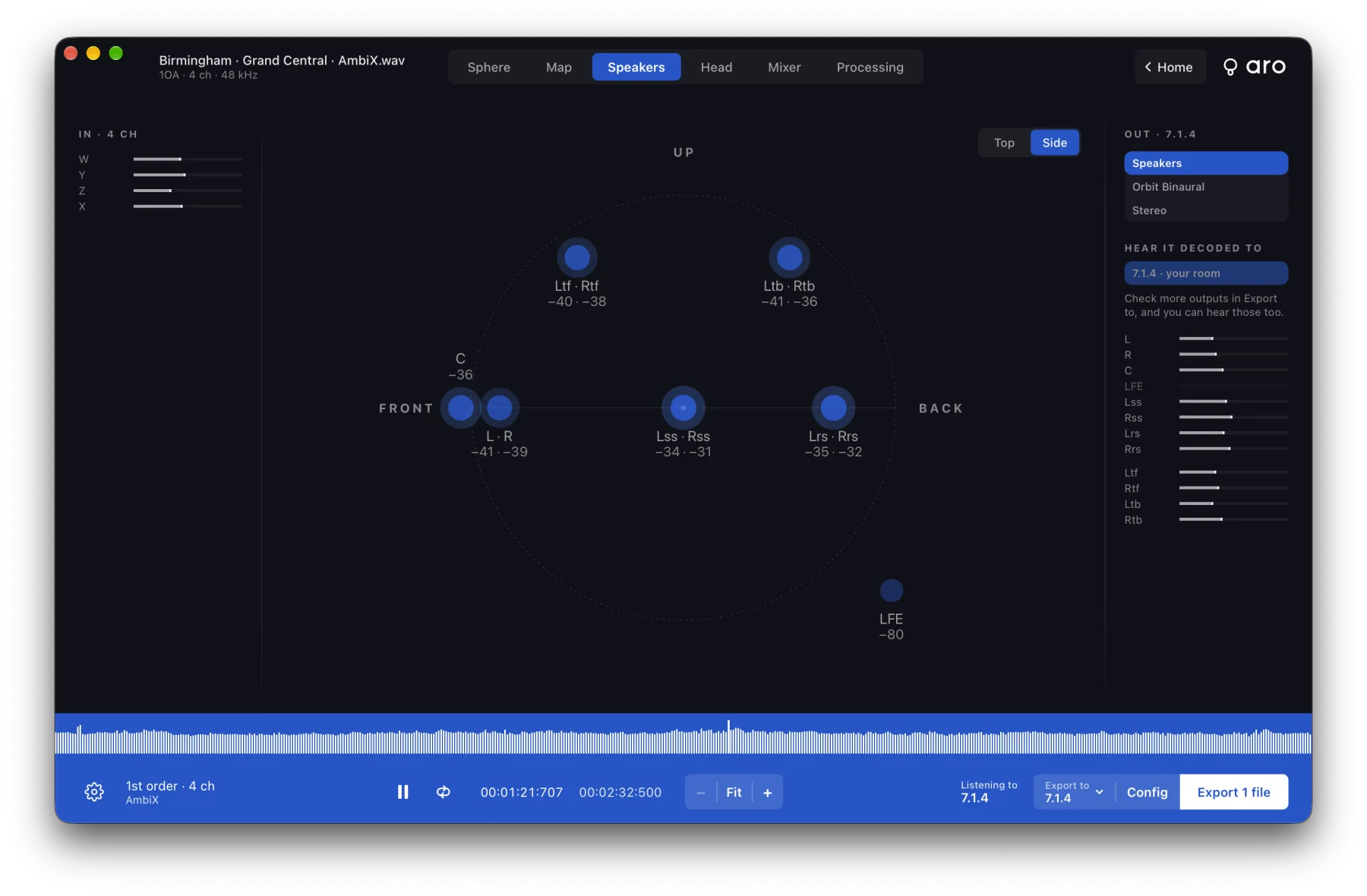
The Top | Side switch at the top right of the Speakers view turns the plan.
- Top looks down from above.
- Side is the same circle seen from your left: front on the left, back on the right, up at the top, with a faint line at ear level. Speakers above your ears sit in the upper half.
From the side, a left speaker and its right partner line up, so a pair is one dot named for both, such as Ltf · Rtf, with both levels. Click it to solo the pair, or ⌥-click to mute both. Aro remembers which view you chose.
Reading the direction views
Sphere, Map and Head show the dominant direction, with readouts for Az (azimuth), Left–Right and Up–Down. Positive azimuth is to the listener's left. The glow follows sources smoothly as they move.
Heatmap
The Map and Head views draw a heatmap of where the sound is. Click Heatmap at the top right of the view for its settings:
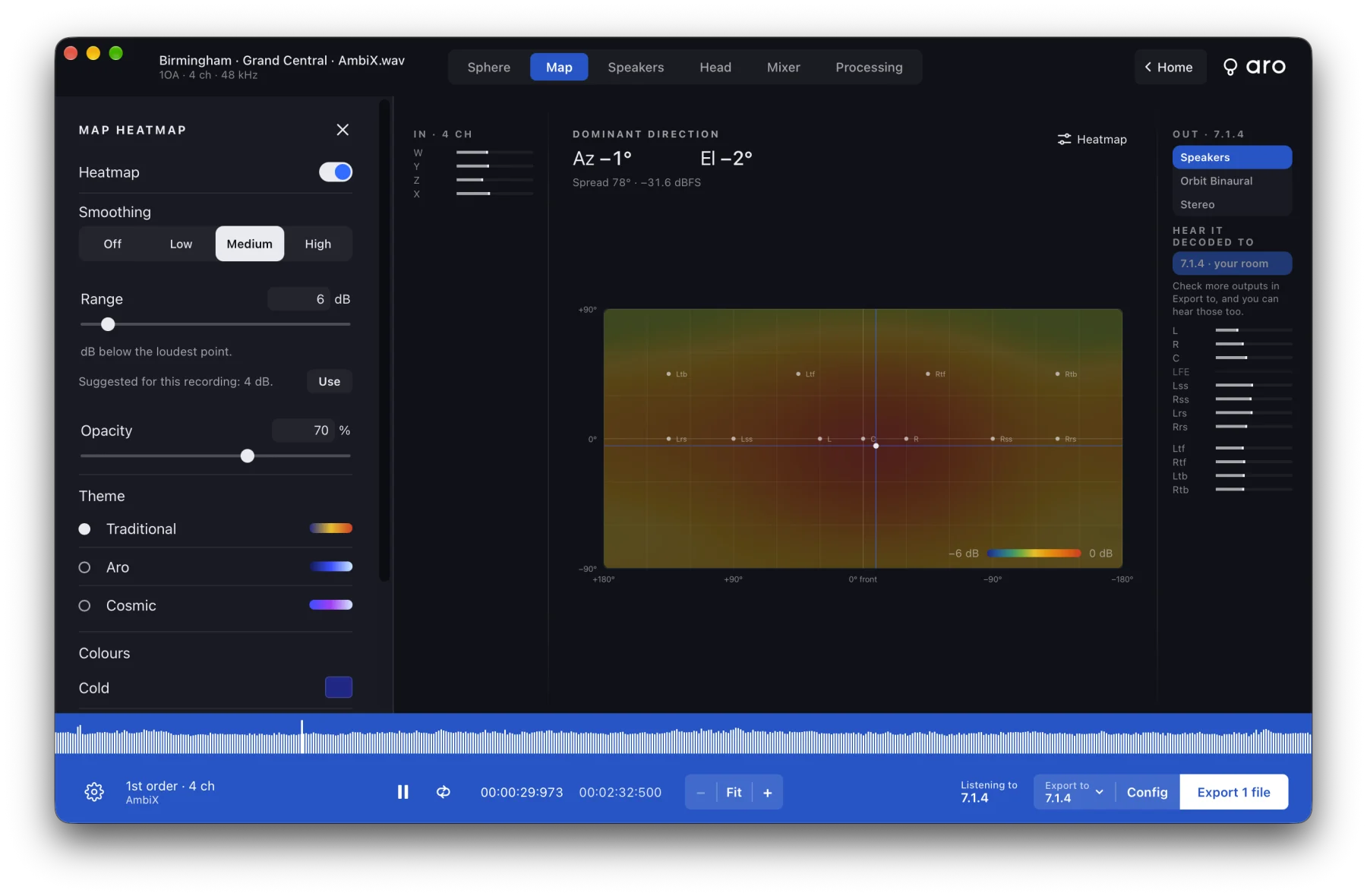
- Heatmap — on or off.
- Smoothing — Off, Low, Medium or High.
- Range — how far below the loudest point is drawn, 3 to 40 dB.
- Opacity — 20 to 100 %.
- Theme — Traditional, Aro or Cosmic, or pick your own Cold, Mid and Hot colours. Reset colours goes back to the theme's.
Aro remembers them.
Sphere settings
Click Sphere at the top right of the Sphere view to change how it's drawn: Auto-rotate, perspective or orthographic Projection, speaker Node size, Level release and Bloom, Grid brightness and width, and the Comet that marks the sound. The comet can follow the Speaker feeds, the Ambisonic field or Both, each with its own colour, and has Glide, Trail length, Trail fade, Trail intensity and Trail size. Reset puts everything back.
The Head view's rings sit in a row (Top, Front and Side). The Direction over time strip under them shows where the sound has been. Bars scale with level, so a very quiet file draws short bars. When a Processing tool moves the direction, the strip draws two lines: Before in blue and After in dark yellow, azimuth solid and elevation dashed. What you hear is the After.
Mid-Side, Double Mid-Side and A-format recordings show a converter stage instead of these views. See Mid-Side & A-format.
The meters
The IN and OUT meters stand in rails at the sides of the stage. For a 2nd-order or higher file, the IN rail has a By order | All channels switch: by order meters each order, and all channels meters every Ambisonic channel. The OUT rail starts with the Monitoring switch. A bar turns orange near full scale.
Playback
The footer holds the transport and a waveform of the file behind the seek bar. With Trim & fades open the waveform grows taller, and the footer shows the range you've kept. Click or drag the waveform to seek. It fills in as Aro reads the file, even while it's playing.
- Space plays and pauses, even after you've clicked a tab, a button or a fader. It doesn't while you're typing in a box. ⌘. stops and goes back to the start.
- ← and → skip 5 seconds; with ⇧, 30 seconds.
- Loop (the button beside Play, ⌘L) repeats the whole file, or the range if you've trimmed it, with no gap. It stays on as you open other files, and is off when Aro starts.
- At the end of the file, Aro stops and goes back to the start.
Controls such as levels, orientation and width are heard about 40 ms after you move them. Bluetooth headphones add their own delay.
If playback stalls, for example on a slow or disconnected drive, Aro says so under the stage.
Zooming the waveform
The footer's waveform zooms in, down to about 5 ms a bar, so you can find a click or set a trim to the exact spot.
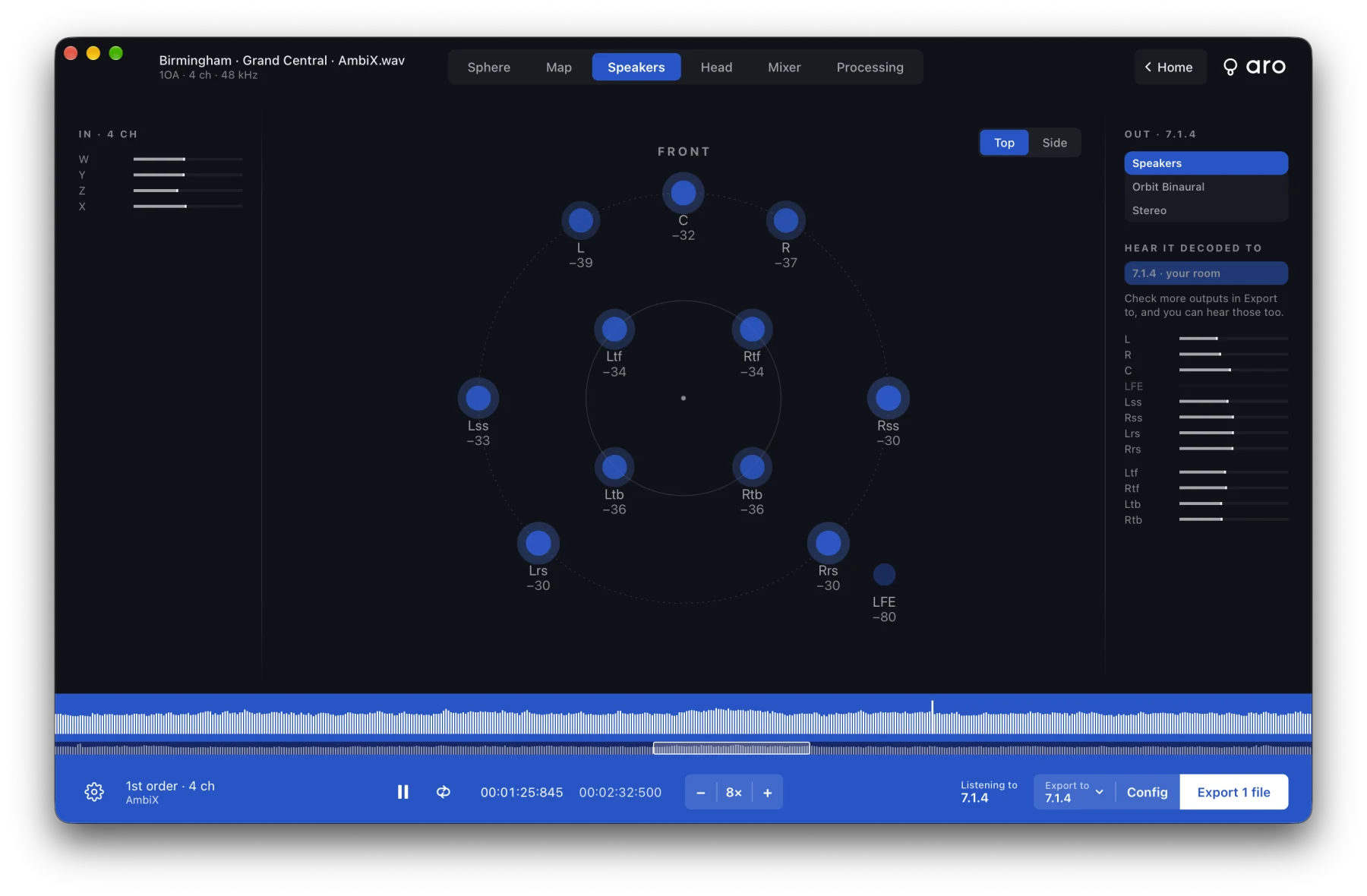
- The zoom control sits after the times: −, the zoom level and +. At the whole recording it reads Fit and − is off. Zoomed in, it shows the level, such as 4×. Click the level to see the whole recording again. + is off at the most detail.
- Pinch on a trackpad, or ⌘-scroll, zooms around the pointer.
- View ▸ Zoom In (⌘=) and Zoom Out (⌘−) zoom around the playhead. Zoom to Fit (⌘0) shows the whole recording.
While you're zoomed in, the footer grows a little to make room for an overview: the whole recording drawn small, with a box on the part in view. Drag the box to move along, or click elsewhere on the overview to jump there. The overview shows your trim range and loop too.
As the file plays, the playhead crosses the view and the view turns a page at the right edge. If you move the view yourself, with a two-finger sideways scroll or the overview, the page stops turning until you press Play or click to seek. A seek to a place off the view brings that place into view.
You can zoom while you set the range in Trim & fades. Each new file opens at Fit.