Appearance
Speakers & Routing
Preferences ▸ Speakers adds your own speaker layouts, patches the layout to your output interface and checks the wiring. It's for Speakers monitoring; stereo and Orbit Binaural always use the first two outputs.
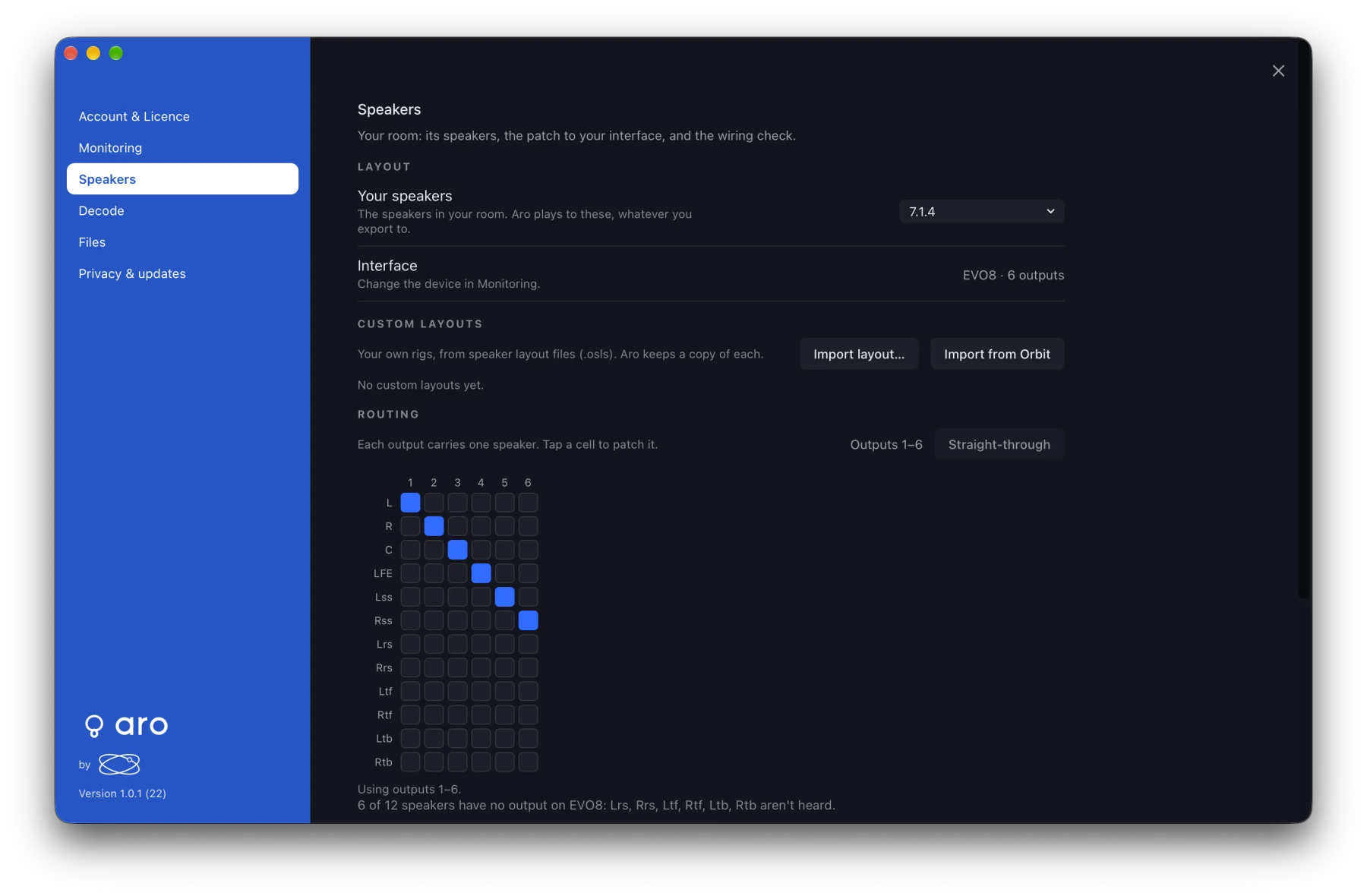
Your speakers
The Your speakers row at the top of the pane is your room: the layout Aro plays to, the same one Monitor ▸ Layout sets. It's separate from what you export to. Aro plays to these speakers whatever you tick on the Export to page.
Custom layouts
Add your own rig from a speaker layout file (OSLS, .osls), alongside Aro's built-in layouts.
- Import layout… opens a file dialog. If Aro can't use the file, it says why and adds nothing. Importing a layout Aro already has replaces it.
- Import from Orbit copies every custom layout from Orbit, once. Orbit's own layouts are only read, never changed.
- Remove deletes Aro's copy of a layout, with its mixer and patch. Removing the layout in use, or the one Aro starts with, switches to 7.1.4, and Aro says so.
Custom layouts show wherever you choose a layout, marked Custom, and Aro keeps its own copy, so they're there the next time you open it. Layouts can't change while an export or batch is running.
OSLS is an open format for describing a loudspeaker rig. Read more at osls.io.
Routing
- Speaker layout — the live layout, the same one the layout picker sets.
- Interface — the output device and how many outputs it has. Change the device in Monitoring.
- Routing — a grid of speakers against outputs, 16 outputs to a page. Click a cell to send a speaker to an output. Each output carries one speaker; a speaker can feed several outputs.
- Straight-through puts speaker 1 on output 1, speaker 2 on output 2, and so on.
Aro saves the patch for each layout, so changing interface keeps it, and outputs the new device doesn't have are simply not used. A layout you haven't patched plays straight-through. On a device with fewer than 3 outputs, the grid is off with the reason.
Speaker test
Plays pink noise on one speaker at a time. Each speaker's button names its output.
- The level starts at the −20 dBFS reference each time and goes from −32 to −14 dBFS.
- It needs Speakers monitoring and a stopped transport.
- It stops when you press Stop test or Play, open a file, change layout, device or monitoring, or close Preferences.
- A test on the LFE plays full-band pink noise.
- The test ignores the mixer.