Appearance
Updates
Aro checks for a newer beta a few seconds after it opens, then once a day. When there is one, a quiet line under the top bar says so, and so does the version line at the bottom left of Home. When you have the newest, Home's line reads The newest beta. What changed is in What's New, or Help ▸ What's New in Aro.
Downloading an update
- Choose Download. A progress bar shows the download; Cancel stops it and leaves nothing behind.
- Aro saves the update to your Downloads folder, checked against the server's checksum. It never replaces a file that's already there. The first time, macOS asks you to allow access to Downloads.
- Choose Show in Finder, then install it as you installed Aro.
Nothing installs, opens or quits by itself. ✕ hides the notice for that build; it still shows on Home and in Preferences ▸ Privacy & updates. You can download from any of the three.
Aro 1.0.1 beta (build 22) needs macOS 14, on Apple Silicon only. Builds 16 to 21 are offered it. The update check doesn't look at your macOS version, so a Mac on macOS 13 can be offered it. Check Requirements first.
Checking by hand
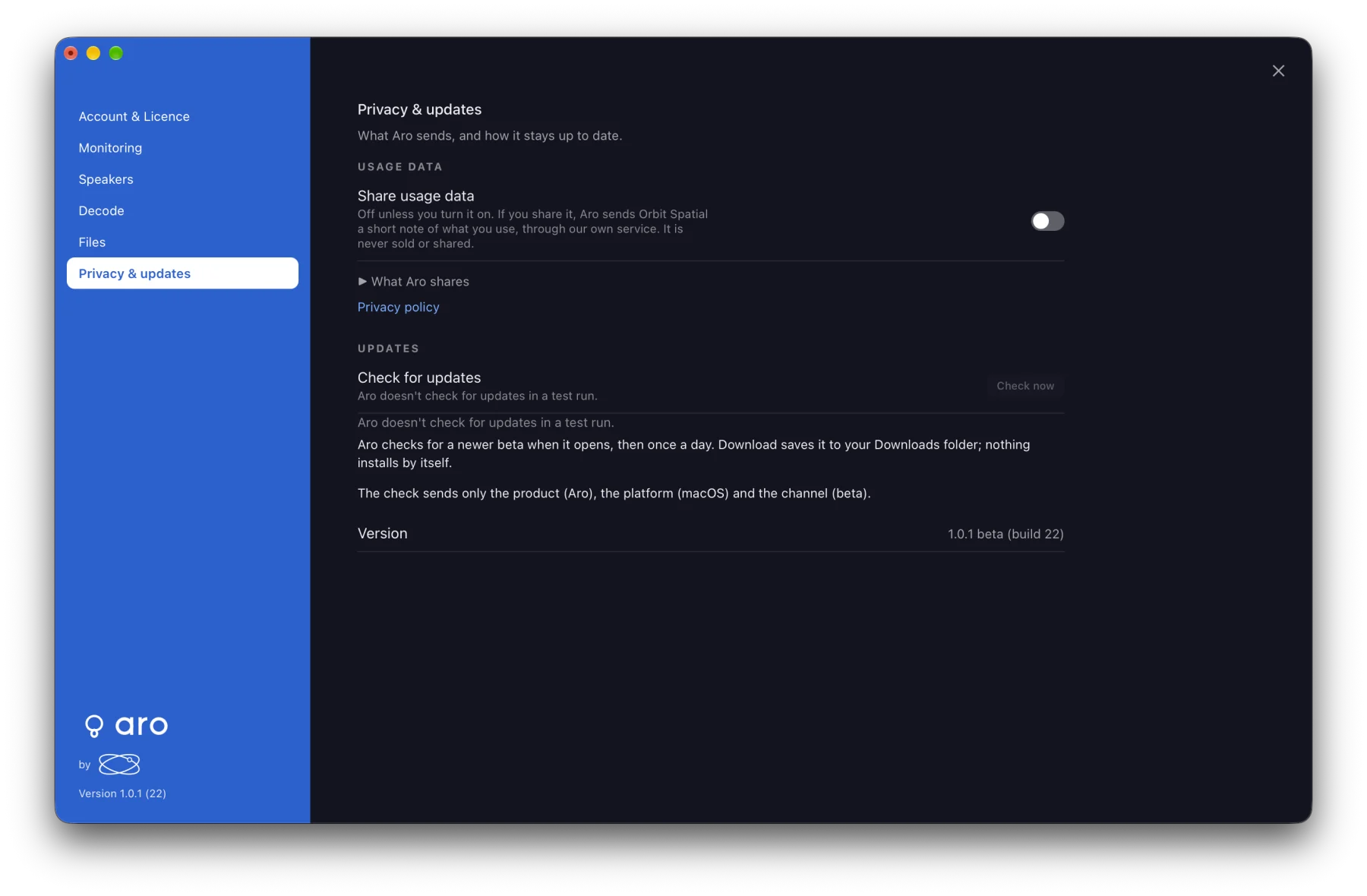
Preferences ▸ Privacy & updates ▸ Check now checks straight away. If you're offline, it says "Could not reach the update server."
What the check sends
The product (Aro), the platform (macOS) and the channel (beta). Nothing else: no version, file names, account or device details. Aro compares the version on your Mac.