
Appearance
Exporting
When the recording sounds right, you choose every file you want on the Export to page, then one press of Export (⌘E) writes them all, with no Save dialog. The button counts them, for example Export 3 files.
What you hear is what goes in the files: orientation, Processing, mixer levels and mutes, LFE.
A Mid-Side, Double Mid-Side or A-format recording has Convert instead, with one choice and a Save dialog. See Mid-Side & A-format.
The Export to page
Press Export to in the footer, or the Export to row in Configuration. A page opens over the whole stage.
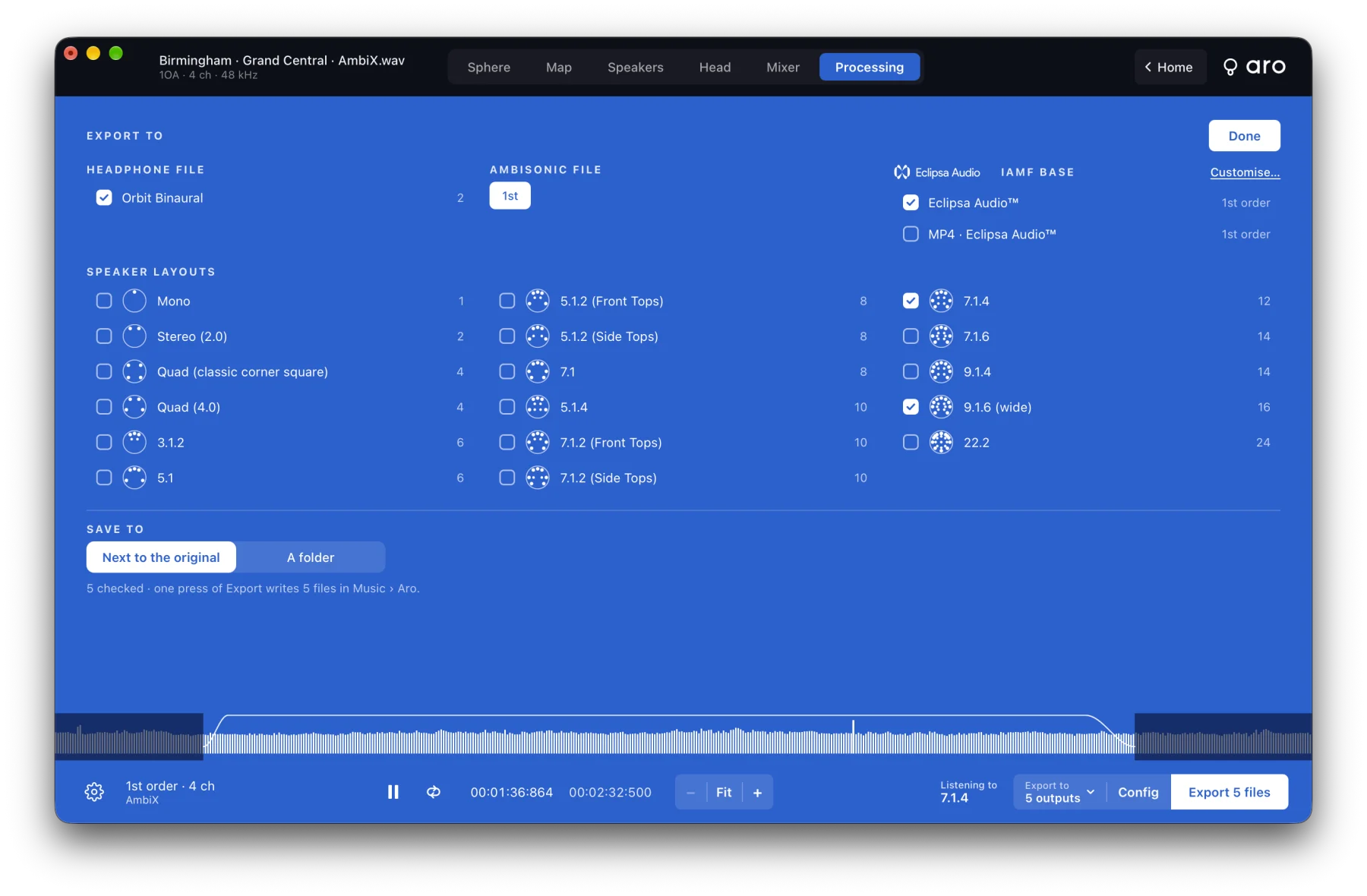
Tick every output you want. Each one is its own file.
- Headphone file is Orbit Binaural, a 2-channel binaural WAV.
- Ambisonic file writes the recording back as Ambisonics. See below.
- Eclipsa Audio™ · IAMF Base has the two IAMF files. See below.
- Speaker layouts are every layout, in three columns by channel count. Your own Custom layouts sit under them.
- Save to is Next to the original or A folder. It's the same setting as Preferences ▸ Files.
A line at the foot counts what you've ticked, for example "4 checked · one press of Export writes 4 files." Press Done to close the page.
Export to only chooses what's written. You keep hearing your room. To change your room, use Monitor ▸ Layout or Preferences ▸ Speakers ▸ Your speakers. To hear an output you've ticked, use Hear it decoded to on the OUT meters. See Monitoring.
Ambisonic outputs
A plain Ambisonic recording can be written as Ambisonics. The Ambisonic file row is a row of chips, from 1st order up to the recording's own order. Tick one or several, and each is its own AmbiX file.
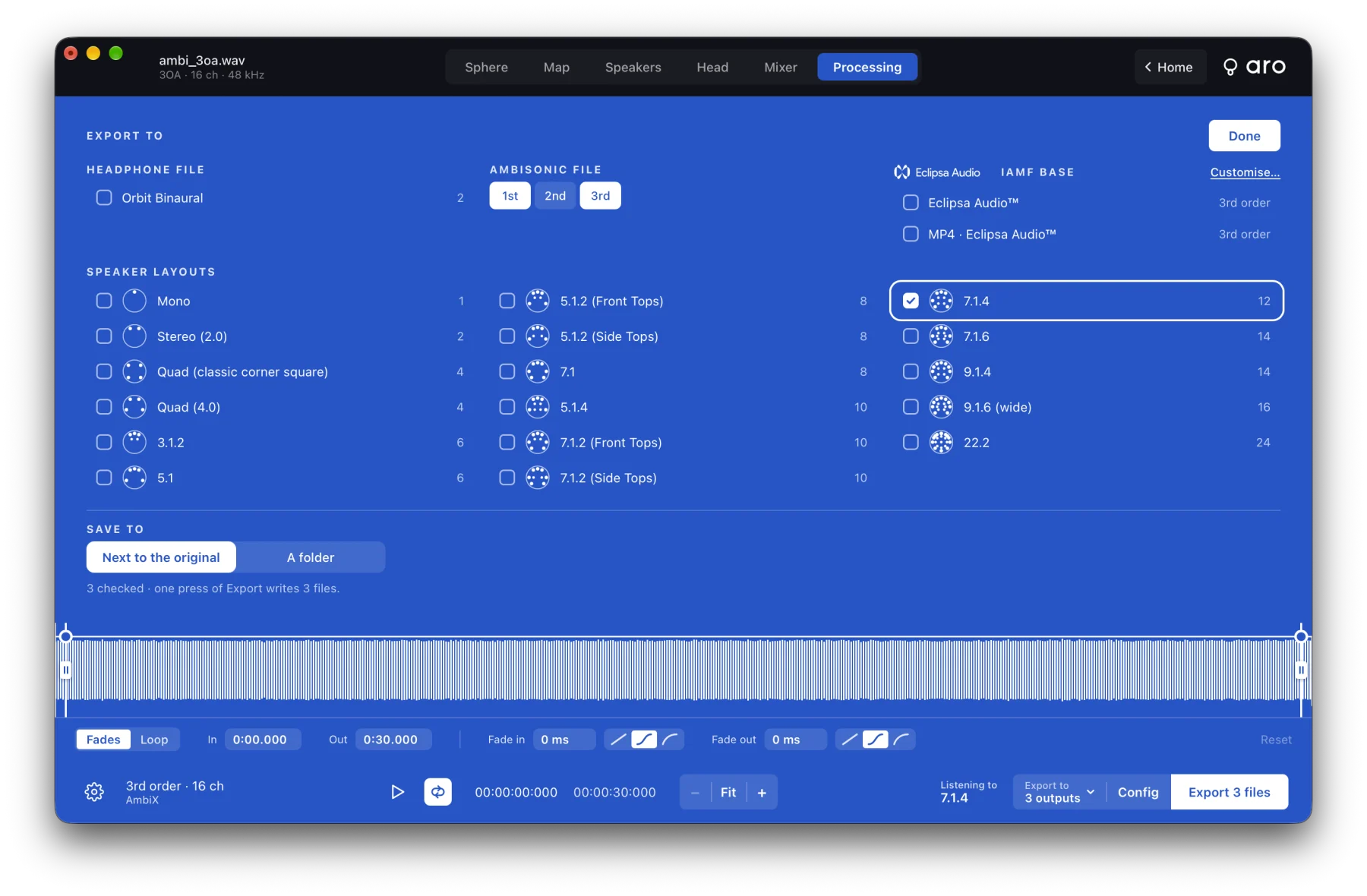
- The file is AmbiX whatever the recording's own format was, with orientation, EQ, Balance, Tame, trim and fades or loop applied.
- A lower order is the same sound without the higher-order channels.
- Files are named
_3OA,_2OA,_1OA. - There's no mixer in an Ambisonic file, not even a master, because it's the recording and not a decode.
- Loudness and true-peak limiting don't apply to it. Loudness is measured on speakers, so Aro says "Loudness is measured on speakers, so it isn't available for an Ambisonic file."
Eclipsa Audio
Under Eclipsa Audio™ · IAMF Base there are two files:
- Eclipsa Audio™, a standalone
.iamf - MP4 · Eclipsa Audio™, an MP4 with the IAMF track and nothing else
Each row shows the order on the right, such as "3rd order". For a recording above 3rd order it reads "3rd order · from 7th". Eclipsa Audio holds up to 3rd order.
Customise… swaps the page for the Eclipsa Audio screen.
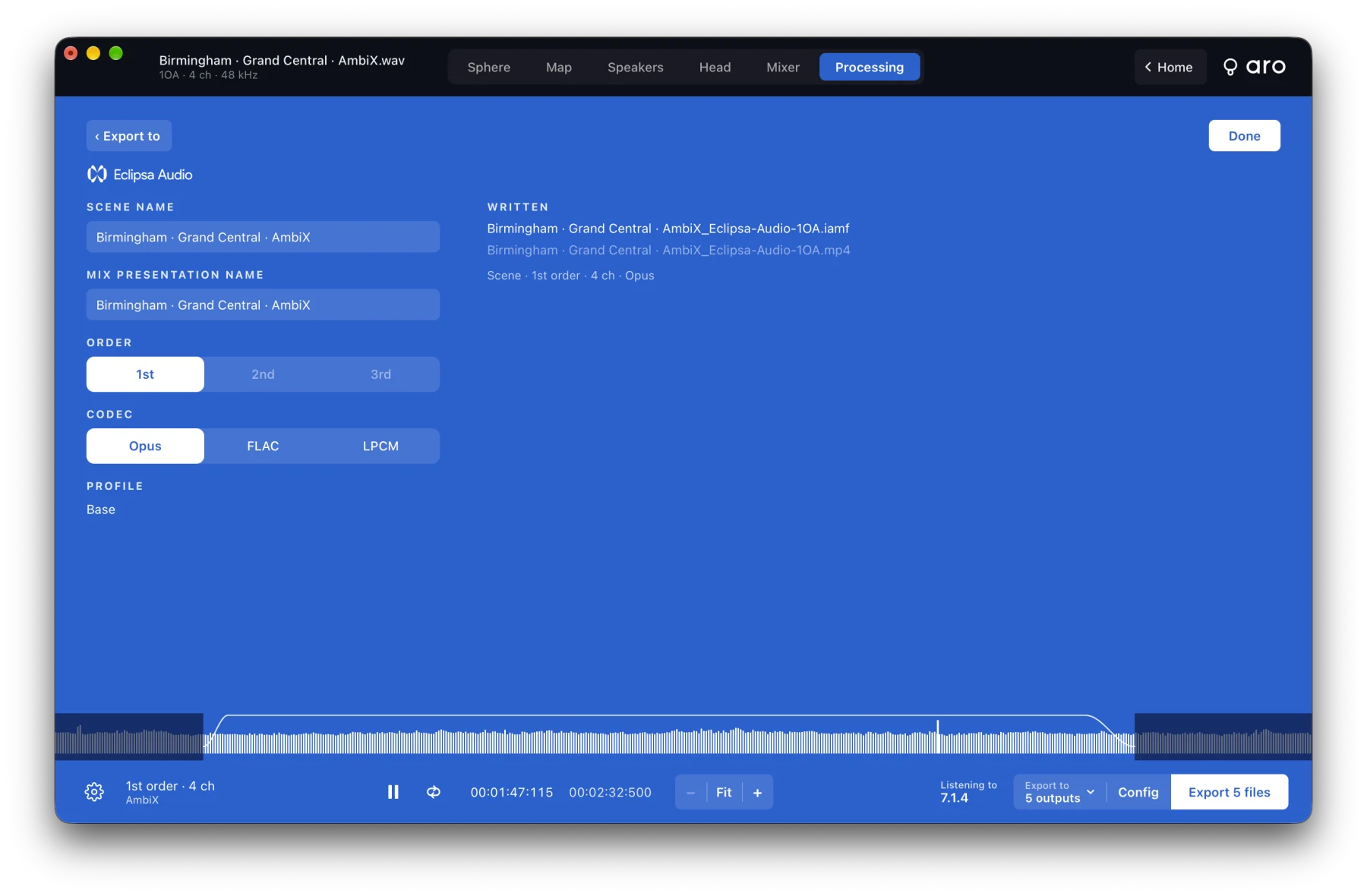
- Scene name and Mix presentation name both start as the recording's name.
- Order is 1st, 2nd or 3rd. Orders above the recording's are off.
- Codec is Opus, FLAC or LPCM.
- Profile is Base.
- Written lists the two file names and a summary line such as "Scene · 3rd order · 16 ch · Opus".
‹ Export to or Done takes you back. One set of settings covers both files.
Opus is always 48 kHz. The IAMF files have no mixer and no loudness setting, and Aro can't play them, because they're files. You hear the recording decoded to your room. Batch can write them too.
Exporting
Press Export. If a layout you're writing has a muted channel, Aro asks first. See Mixer.
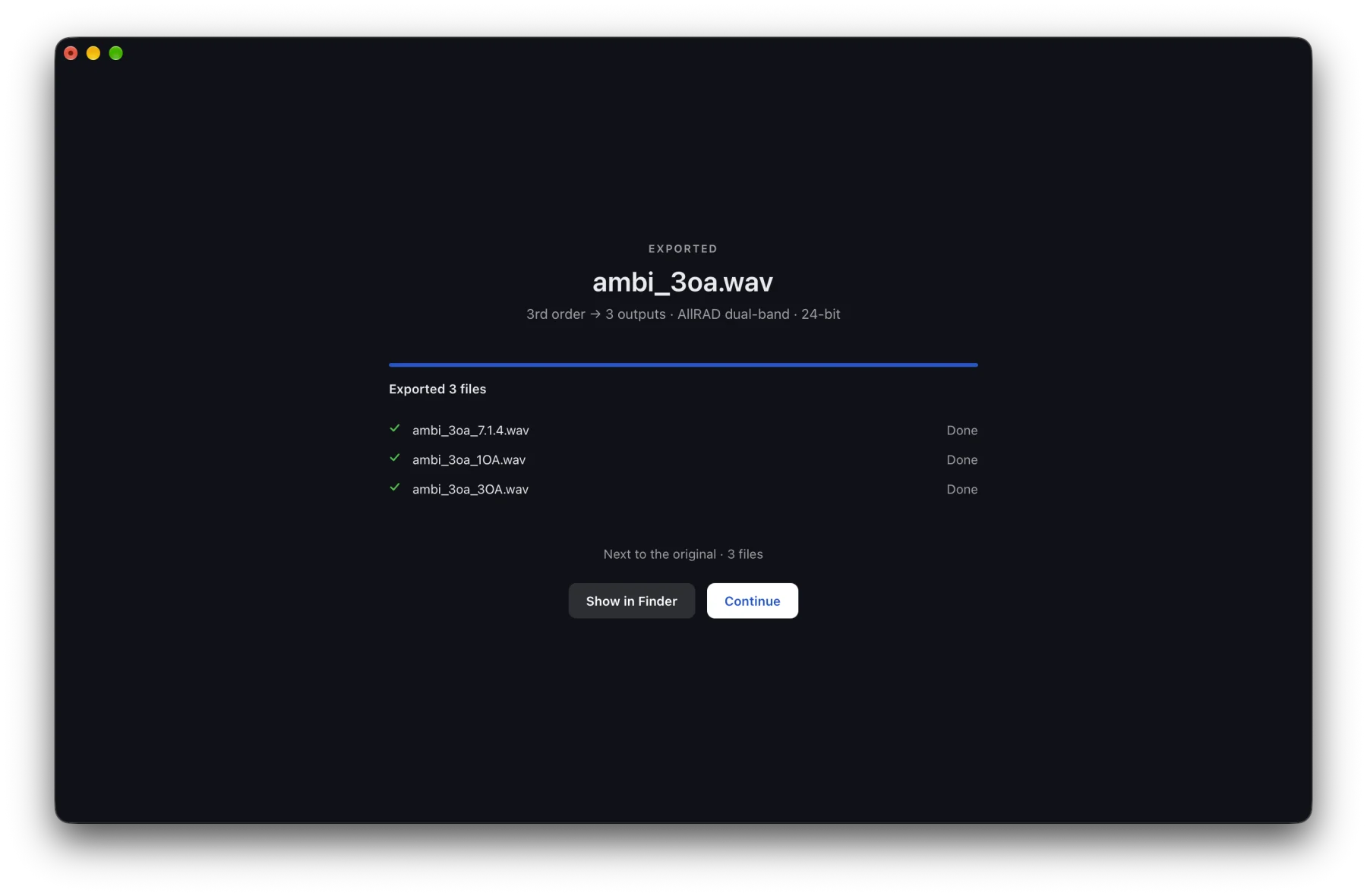
The Exporting screen shows a bar for the whole press, which file it's on, such as "2 of 4", about how long is left, and a row for each file with its progress. The line under the rows says where the files go, for example "Next to the original · 4 files". Exports run much faster than real time.
Cancel stops the export and leaves nothing behind. Aro writes to a hidden temporary file and renames it when the file is finished, so an existing file is never touched. A taken name gets -2, -3 and so on.
Quitting during an export asks first: "Stop the export and quit?"
Skipped outputs
An output that can't be written for this recording is skipped, and the others are still written. Its row says Skipped with the reason. For example, Projection can't decode to a layout with too few speakers for the recording's order, and an Ambisonic file can't be above the recording's own order. If every output would be skipped, the Export button is off and its tooltip says why.
When it's done
The finished export stays on screen with the name of each file and how it went, and a line such as "Exported 3 files · 1 skipped". Show in Finder selects the files, and Continue takes you back to the recording. Nothing closes by itself.
For bit depth, sample rate, loudness and file names, see Exported Files.