Appearance
Licensing
Orbit uses a simple license system with a free trial to let you evaluate the software before purchase.
New in Orbit 1.5.10
Sign-in, the licence screens and your account share the new Welcome's look, and you can now manage your licences and Macs, or delete your account, without leaving Orbit. See Your account in Orbit.
Signing in
Orbit opens on Sign in to Orbit and finds your licence for you — no key to copy and paste. Nothing is activated until you say so.
- Sign in with Sign in with Apple, Continue with Google, or your email address and password. With email, Orbit sends a 6-digit code to finish signing in; enter it on the Check your email screen. (Send a new code sends another; codes last 10 minutes.)
- Orbit shows the licence on your account: what kind it is, its key (shortened) and how many of its Macs are in use.
- Click Activate this Mac. This uses one of your seats; you can free it again later.
New to Orbit? Choose Create an account on the sign-in screen. Have a key from before accounts? Choose Enter a licence key — see Activating with a key.
Your email address is never shown in full on screen: Orbit shortens it to its first letter and the domain, for example b•••@icloud.com.
Free Trial
Try Orbit Pro free for 14 days on this Mac, with no card required.
To start your trial:
- Download and install Orbit
- Open Orbit and sign in (or choose Create an account) — see Signing in
- If your account has no licence yet, Orbit offers Try Orbit Pro free for 14 days. Click Start trial on this Mac.
There's no trial key to enter. While the trial runs, the licence screen shows Trial · N of 14 days left. When it ends, Orbit needs a licence — Standard or Pro — to carry on; nothing you made is lost, and it opens again the moment a licence is active.
Just bought a licence? Check again
A licence you buy on orbitspatial.io lands on your account and activates in the app on its own. If your trial has been used or has ended, the licence screen also has Just bought one? Check again: it asks the licensing server straight away, so a new licence — or a trial support has extended for you — starts working at once. If the check can't get through (for example, you're offline), the screen says why.
Internet required for trial
Trial licenses have a 24-hour offline grace period. You'll need to reconnect at least once a day for Orbit to validate your trial. For longer offline use, you'll need a Standard, Educational, or Organizational license (which offer 30-day offline grace).
What's Included
Orbit comes in two editions, Orbit Standard and Orbit Pro. Every licence gives you the full QC workflow for ADM BWF files:
- ADM file loading and playback
- Multichannel (7.1.4 or another speaker layout), binaural, Apple Spatial Audio, and stereo monitoring
- 3D visualizer with level-reactive objects
- Spatial and multichannel waveform views
- Solos & Mutes panel with per-object controls
- Head tracking (AirPods and camera)
- PDF export (Metadata and Full presets)
- Binaural audio export
- Full metering and loudness measurement
- Virtual studio configuration, and physical room speaker calibration
- Speaker test — pink noise, one speaker at a time
- Your own imported SOFA HRTF profiles
- Loop regions, the Loop button and the timeline grid (new in 1.5.10)
- The picture of an IAMF export with video, in its own window (new in 1.5.10)
- Stereo Reference: compare the master with your own stereo mix (new in 1.5.10)
Orbit Pro (and the 14-day trial) adds:
- Sessions, with multi-track playback
- The Timeline page, waveform zoom, and markers & comments
- Video sync and editing
- The Monitor page — per-speaker solo/mute and custom speaker groups
- IAMF / Eclipsa Audio export and AXML export
- Audio export to speaker layouts, and ranged export
- The dark theme
License Types
Standard License
For individual professionals and freelancers. Available as Orbit Standard or Orbit Pro — see What's Included.
- 2 activations (e.g., studio workstation + laptop)
- 30-day offline grace period — work off the grid without losing access
- Automatic license refresh when online
Educational License
Discounted pricing for students and educators, in Education editions of Orbit Standard and Orbit Pro.
- 2 activations
- 30-day offline grace period
- Proof of educational status required
Organizational License
For teams and studios.
- Full features with custom activation count based on your needs
- 30-day offline grace period per device
- Admin dashboard for license management
- Admins can revoke licenses remotely when team members leave or devices change
Contact us at support@southloopstudios.com for organizational licensing options.
Purchasing a License
Visit orbitspatial.io to purchase a license. After purchase, your license key will be available in your account dashboard and sent via email.
Activating Your License
- Open Orbit and sign in — see Signing in
- Click Activate this Mac
Have a key from before accounts instead? On the sign-in screen choose Enter a licence key, paste your key and click Activate this Mac. If the key is refused, Orbit says Key not recognised — check it against the email from your purchase, since one mistyped character is the usual cause.
Your license will be validated and stored securely on your device.
Your account in Orbit
With a licence active, Orbit → Manage License... opens your licence and account. You can also get there by clicking your name in the top-right corner of the Welcome screen, or from Preferences ▸ Account & Licence ▸ Manage Licence. ← Back to Orbit returns you to where you were.
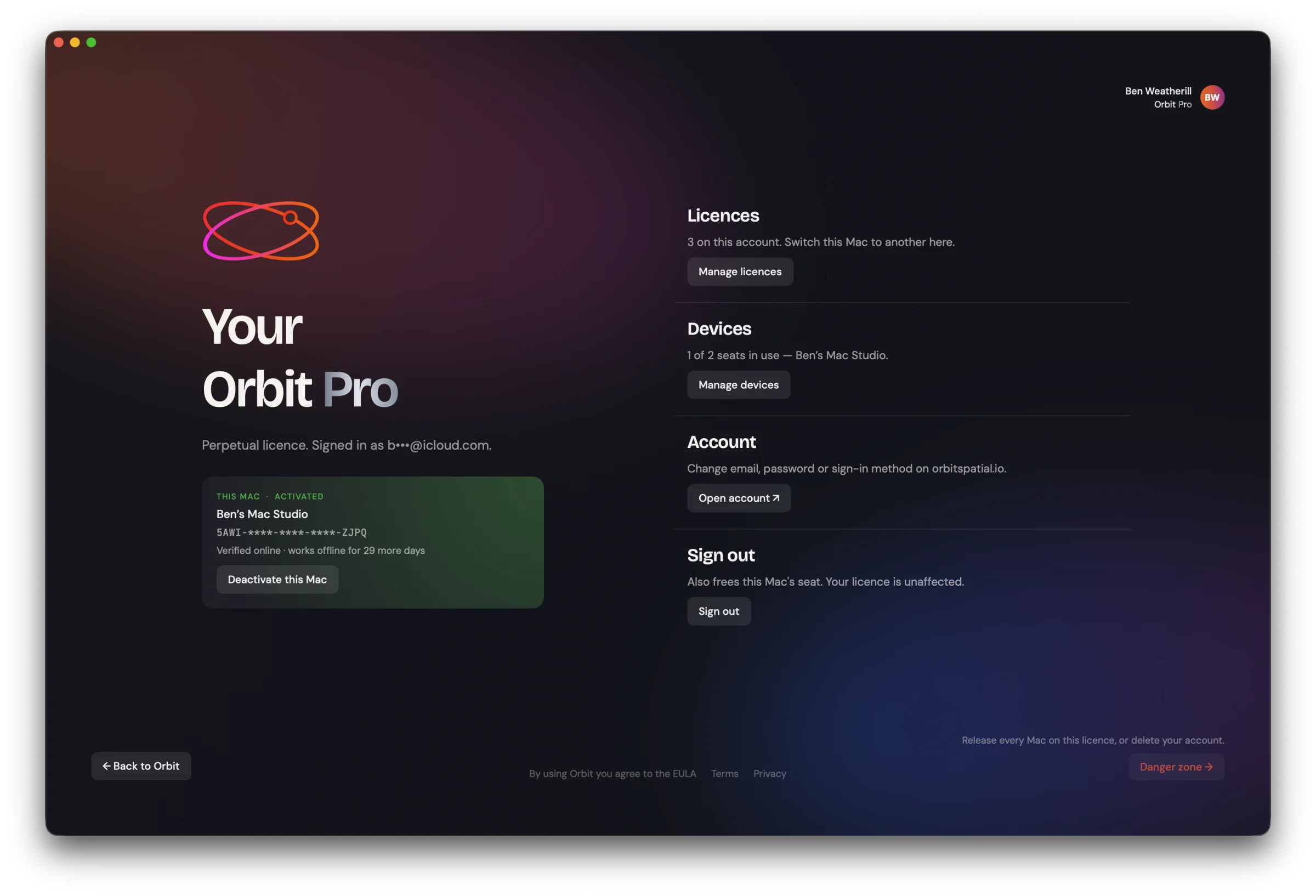
The screen shows your edition and the licence this Mac uses, a This Mac · Activated card (with how many more days it works offline), and these rows:
- Licences — Manage licences lists every licence on your account and which one is In use on this Mac. Click Use on this Mac on another, then Switch this Mac, to change licence: this Mac frees its seat on the old licence and takes one on the new one. In Orbit Standard without a trial, this row offers a free trial or Orbit Pro instead.
- Devices — Manage devices lists the Macs on your licence, when each was last seen, and how many seats are in use. Click Deactivate beside any Mac to release it, even one you don't have with you: it goes back to the licence screen the next time it's online.
- Account — Open account ↗ opens orbitspatial.io, where you change your email, password or sign-in method.
- Sign out — signs you out and frees this Mac's seat. Your licence itself is unaffected, and sessions and preferences on this Mac stay where they are.
Danger zone
Danger zone →, bottom right of the account screen, holds the two things that can't be undone:
- Release every Mac — deactivates every Mac on this licence. Click Release all seats and Orbit emails you a 6-digit code; enter it and click Release all seats again. Nothing happens until you enter the code. Each Mac goes back to the licence screen until it's activated again.
- Delete account — type DELETE to confirm, click Delete my account, then Yes, delete everything. Orbit releases your Macs first, then removes your account from Orbit's servers. The screens say what goes with it; read them before you confirm. Leave Orbit open until it finishes; this Mac then returns to the sign-in screen. There is no recovery.
Team seats
If your seat is provided by an organisation, the account screen says so. You can release this Mac, but switching or removing the licence, and deleting the account, are done by your organisation's admin.
Account & Licence
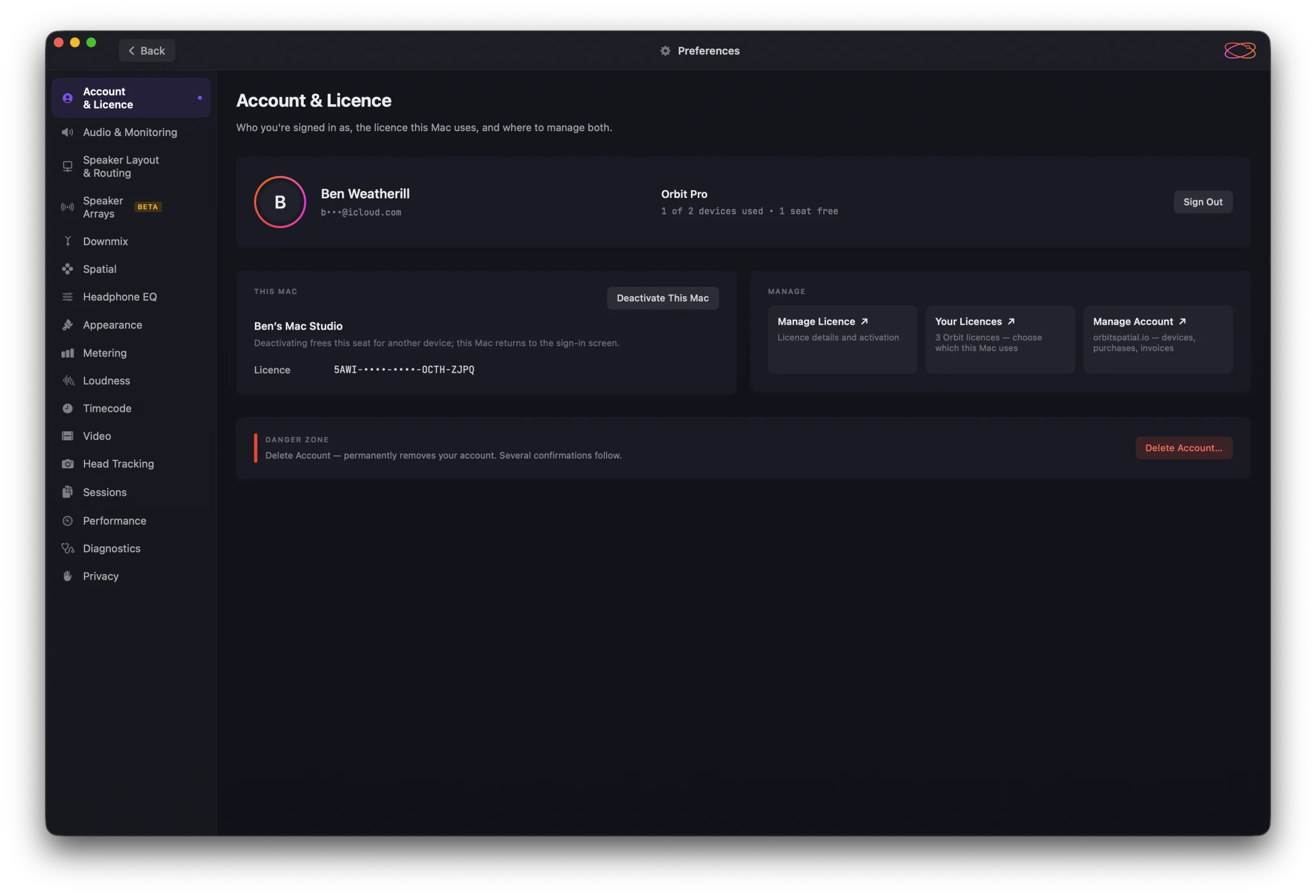
Preferences ▸ Account & Licence shows who you're signed in as, the licence this Mac uses, and where to manage both. Signed out, it offers Open the Licence Window to sign in. Signed in, Manage Licence opens your account in Orbit, Your Licences chooses which of your licences this Mac uses (when you have more than one), and Manage Account opens your account on orbitspatial.io (devices, purchases, invoices). Delete Account…, at the bottom, deletes your account after several confirmations.
Deactivating a License
If you need to move your license to a different machine:
- Go to Orbit → Manage License... (or Preferences ▸ Account & Licence)
- Click Deactivate this Mac, then confirm with Deactivate
- Activate on your new machine
Sign out also releases this Mac's seat. You can also release a Mac you're not sitting at from Manage devices — see Your account in Orbit.
Deactivation frees up the activation slot so you can use it elsewhere.
Offline Use
Trial licenses have a 24-hour offline grace period — you'll need to reconnect daily for license validation.
Standard, Educational, and Organizational licenses include a 30-day offline grace period:
- Your license remains valid for 30 days without internet
- When online, Orbit refreshes your license automatically
- If the offline period expires, connect to the internet to revalidate
This is ideal for engineers who work in studios without reliable internet or travel frequently.
FAQ
Can I transfer my license to a new computer?
Yes. Deactivate on your old machine, then activate on the new one.
What happens if I reinstall macOS?
Your activation may be preserved if your device ID remains the same. If not, deactivate first or contact support.
Do I need internet to use Orbit?
For trial licenses: You need to connect at least once every 24 hours for license validation.
For paid licenses: Only for initial activation. After that, you can work offline for up to 30 days before needing to reconnect for license refresh.
Can my organization revoke a license remotely?
Yes. Organizational license admins can revoke licenses through the admin dashboard. This is useful when team members leave or devices need to be reassigned.
How do I get an organizational license?
Contact us at support@southloopstudios.com for organizational licensing options and pricing.