Appearance
Getting Started
Welcome to Orbit. This page will have you playing back an ADM file and exploring the interface in just a few minutes.
Quick start
Launch Orbit and sign in. Orbit finds the licence on your account; click Activate this Mac. (No licence yet? Start trial on this Mac gives you 14 days of Orbit Pro.) See Licensing for every step.
On the Welcome screen, click Open file… under Open a file (or choose File → Open File..., ⌘O) and pick an ADM BWF file.
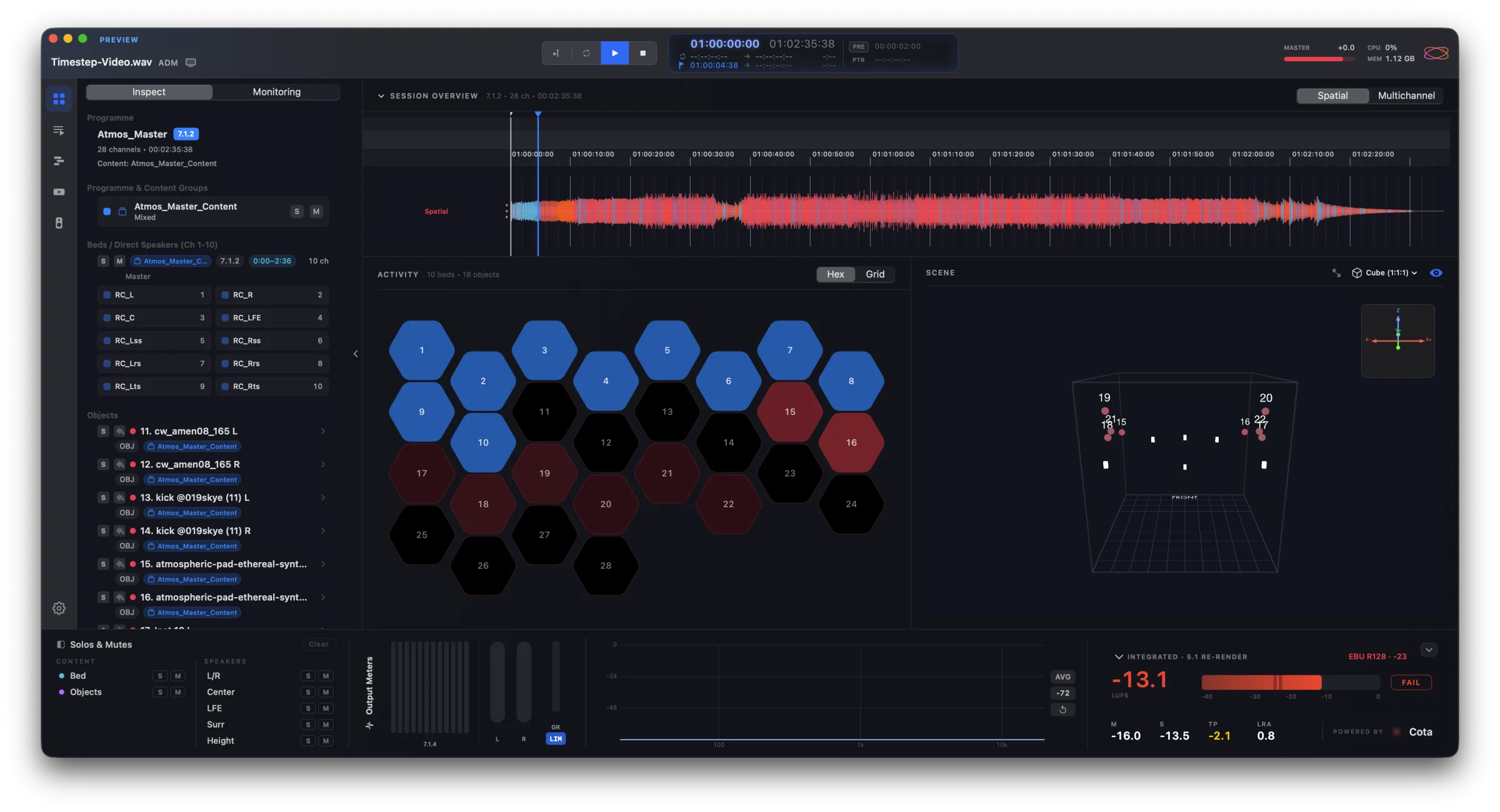
The Welcome carries you straight into the file: the loading screen shows the file's name, what it is (ADM BWF or IAMF, beds, channels, length) and what Orbit is doing, then the workspace appears. Waveforms keep building in the background — a SCANNING readout in the top bar shows progress, and you can keep working while it scans.
Large files take longer
Orbit scans every object and bed in detail to build waveforms and prepare playback. Load times depend on both file length and number of objects — longer sessions with many objects take more time. We think the wait is worth it. Working with massive ADM files? We'd love to hear from you — drop us feedback via your account portal.
Press Play in the transport at the top of the window (or hit Space). The timecode card beside it shows where you are; press Stop twice to go back to the start. See Top Bar & Transport.
Choose a monitoring mode: Multichannel for speakers (7.1.4 or another layout), Binaural for headphones, Apple Spatial Audio for Apple's spatial rendering, or Stereo for a quick fold-down check.
Scrub through the timeline and watch objects move in the 3D visualizer.
That's it — you're up and running.
New in Orbit 1.5.10
The Welcome, loading, sign-in and account screens share one new look. See The Welcome screen below.
Before you begin
A few things to check before your first session:
- License: You'll need a license to use Orbit. To start a free 14-day trial, sign in on the first screen and click Start trial on this Mac. Trial licenses require internet connection at least once every 24 hours.
- Output device: Make sure your audio interface or headphones are connected and selected. If you've just connected a device (like AirPods or an audio interface), hit Refresh Devices to pick it up.
- Head tracking (optional): If you want to use head tracking in Binaural mode, connect your AirPods or ensure your camera has permission.
For detailed system requirements, see Requirements. For full licensing details, see Licensing.
The Welcome screen
With nothing open, Orbit shows the Welcome screen. It offers three ways in:
- Open a file (Open file…) — one ADM BWF, IAMF or WAV master, opened in Preview Mode.
- Playlist (New session) — an album or compilation as one session.
- Open a session (Open session…) — an
.orbsessionyou saved before.
Playlists and sessions are part of Orbit Pro. In Orbit Standard, Open a file comes first and the other two carry a Pro badge, with a link to start a free trial or see Orbit Pro.
Under Continue, the Welcome lists the last few files (and, in Orbit Pro, sessions) you opened; click one to open it again, or Clear to empty the list. When a new version of Orbit is out, the Welcome says so.
Signed in, your name and edition sit in the top-right corner. Click them to open your licence and account — see Your account in Orbit.
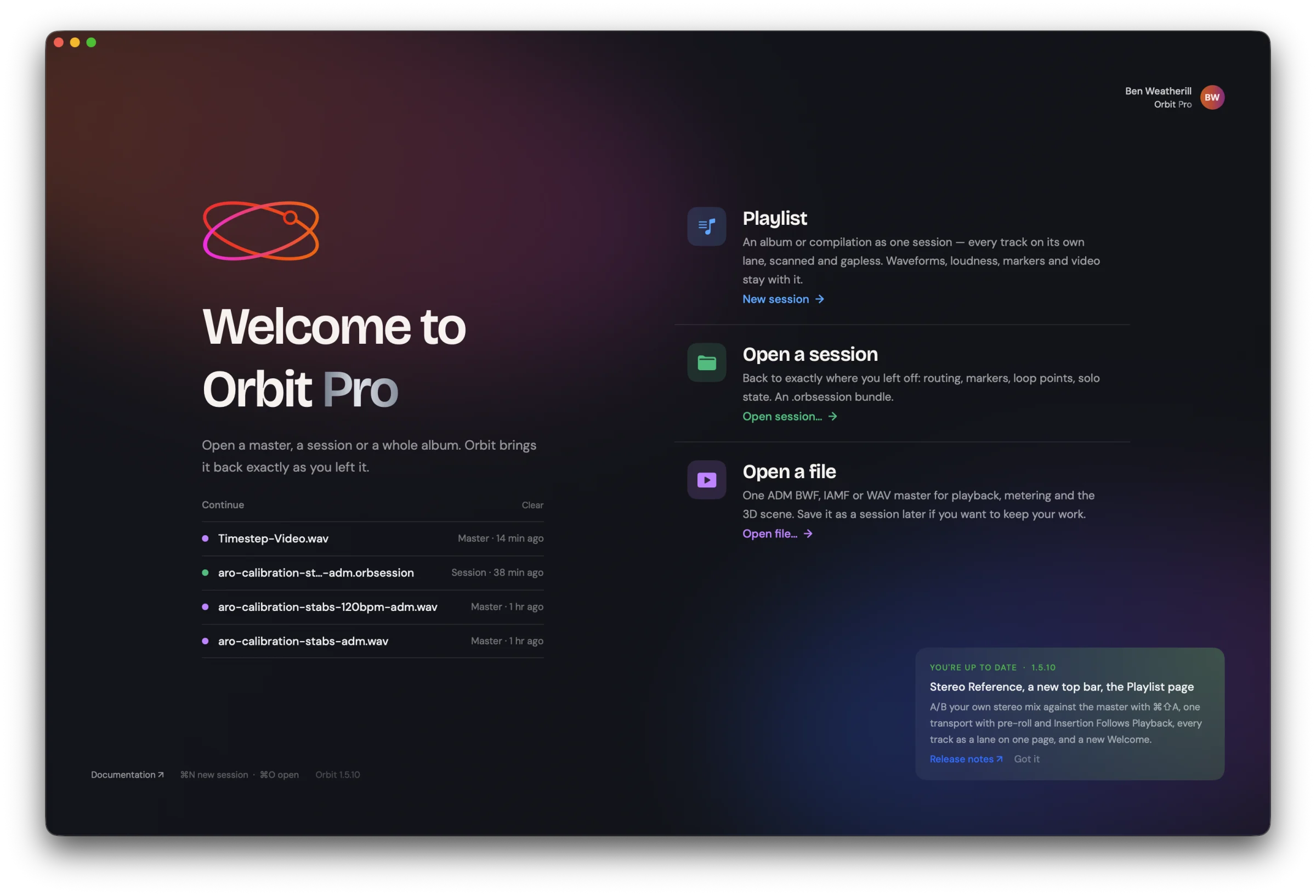
When you choose a file, the Welcome carries you into it: the loading screen names the file, shows what it is, and says what Orbit is doing — reading the metadata, loading the audio, preparing the audio engine, building the timeline.
What happens when you load a file
When you open an ADM BWF, Orbit:
- Reads the programme metadata (name, duration, structure)
- Indexes all beds and objects
- Prepares automation data for real-time playback
- Makes playback available immediately — waveforms build progressively in the background
Once complete, the timeline, 3D scene, and meters are ready for inspection. You can also reopen recent files quickly via File → Open Recent.
Your first QC pass
Here's a quick way to build confidence in an ADM:
- Check the basics: Does the programme name and duration match what you expect?
- Watch the 3D scene: Do objects appear and move as intended? Any stuck or jumping objects?
- Scan the meters: Are levels healthy? Any unexpected clipping?
- Try Binaural mode: Does the spatial intent translate to headphones?
- Try Apple Spatial Audio: How does the mix sound through Apple's spatial rendering?
- Flip to Stereo: Are essential elements still audible in the fold-down?
Quick confidence check
If you're short on time, inspect three moments: the opening, the densest section, and the final minute. These often reveal the most common issues.
If something goes wrong
File won't load?
- Confirm the file is an ADM BWF with valid metadata (not just any .wav file)
- Try a smaller test file to verify your setup
No audio?
- Check your output device under Output & Devices in the sidebar's Monitoring tab (or Preferences ▸ Audio & Monitoring)
- Make sure your monitoring mode matches your setup (e.g., Binaural for headphones)
Objects not moving?
- Scrub to a section with known automation
- Select an object in the sidebar to highlight it in the 3D view
For more help, see Troubleshooting.
Next steps
Now that you're up and running:
- Overview — Learn what each part of the interface does
- Top Bar & Transport — Play, Stop, loops, pre-roll and the timecode card
- Timeline View — Understand the waveform views and scrubbing
- Monitoring Modes — Dive deeper into multichannel, binaural, Apple Spatial Audio, and stereo options
- QC Workflows — Structured approaches for different QC scenarios