
3D Visualizer
The 3D visualizer turns ADM automation into something you can see. While meters tell you about levels, the visualizer shows you where objects are positioned in space — and whether they're moving the way they should. It's one of Orbit's most useful tools for catching spatial issues quickly.
What you see
- A stylized room with a floor grid and gradient walls.
- Object positions shown as moving points with numbered labels.
- Motion that follows ADM automation in real time.
- Optional front indicator to show room orientation.
- Axis reference (gizmo) in the corner showing X (red), Y (green), and Z (blue) directions.
- Level-reactive object sizing: objects pulse larger when audio is active.
Selection and solo rings
Objects can display rings to indicate their state:
- White ring: The object is selected in the sidebar. Use this for visual tracking without affecting audio.
- Theme-colored ring: The object is soloed. Only soloed objects are audible.
- When an object is both selected and soloed, the solo ring is shown (solo takes precedence).
- Multiple objects can be selected at once (using Shift+Click or Command+Click in the sidebar), and all selected objects show white rings.
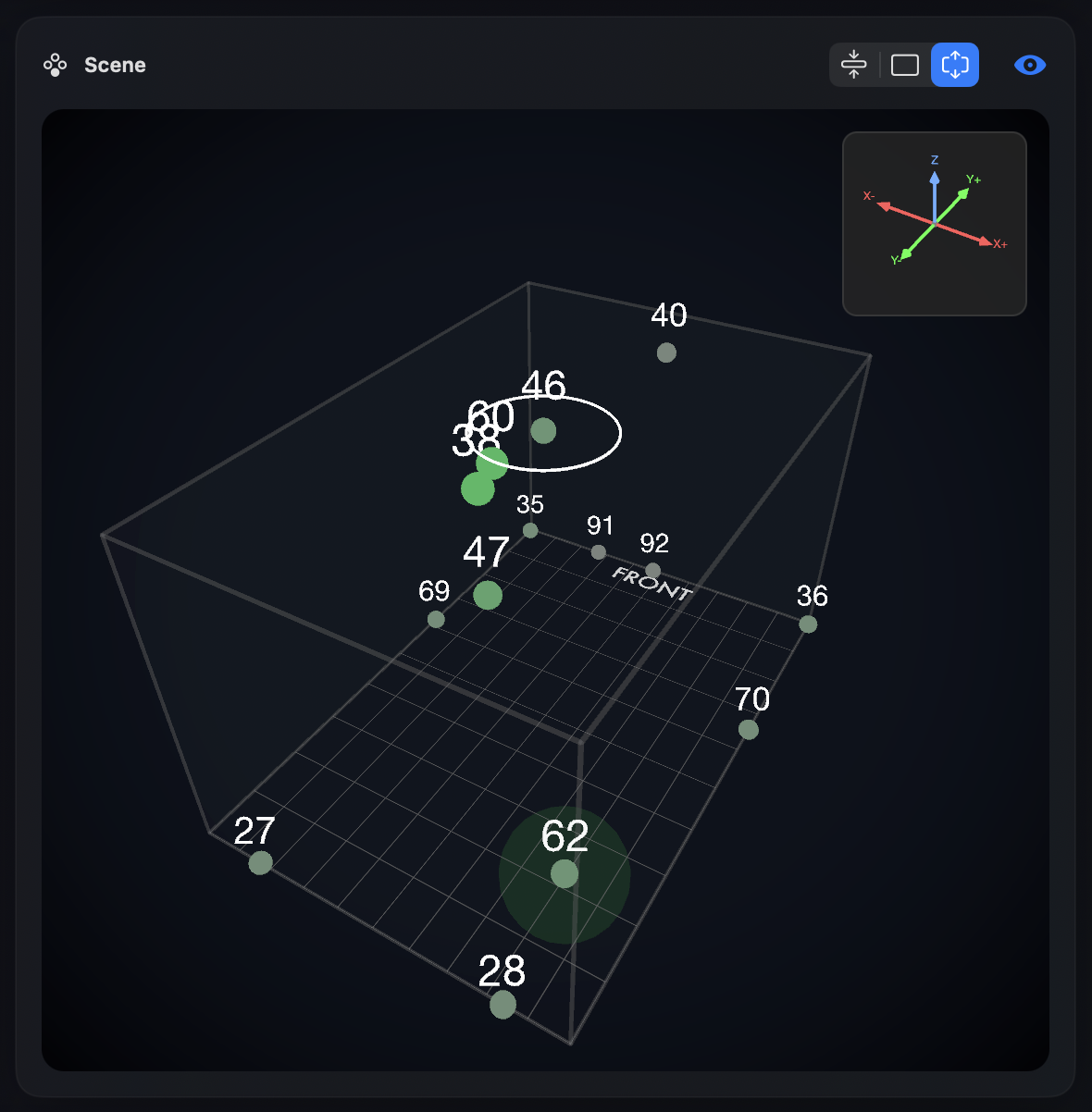
Room shape options
Orbit offers two room shape presets to suit different preferences:
- Cube (1:1:1): Equal dimensions on all axes. This is the default and provides the most accurate spatial reference since ADM positions are defined in a normalized cube.
- Room (2:3): More realistic room proportions that may feel more familiar. The spatial math remains accurate; only the visual aspect ratio changes.
Change the room shape via View → Scene Room Shape.
Why no head or room model?
Orbit intentionally doesn't display a fake head or room element in the visualizer. This preserves the ability to accurately see Cartesian coordinates at a glance. The bottom plane represents head/ear level with the main speakers.
Visual customization
Customize the visualizer appearance from the View menu:
- Object Theme: Choose from five color themes (Pink, Blue, Green, Purple, Yellow) that affect object markers and the spatial waveform.
- Show Front Indicator: Toggle the "FRONT" label that shows room orientation.
Level-reactive objects
Objects respond to their audio level in real time:
- Active objects appear larger, more prominent, and change from grey to your theme color
- Inactive or silent objects shrink, fade, and appear grey
- This helps you quickly identify which objects are contributing audio at any moment
How to read the space
Orbit follows ADM Cartesian coordinates (ITU-R BS.2076). For reference:
- X: left (-1) to right (+1)
- Y: back (-1) to front (+1)
- Z: bottom (-1) to top (+1)
See: https://www.itu.int/rec/R-REC-BS.2076
Common visual red flags
- Objects locked to a single point when they should move.
- Sudden jumps that do not align with the timeline.
- Height moves that never cross the top layer.
INFO
The visualizer is a QC aid. Always confirm critical decisions with monitoring and meters.