Getting Started
Welcome to Orbit. This page will have you playing back an ADM file and exploring the interface in just a few minutes.
Quick start
Launch Orbit and activate your license via the initial screen or Orbit → Manage License.... (Need a license? Get a free trial — just create an account and add the trial license.)
Click Load ADM and choose an ADM BWF file.
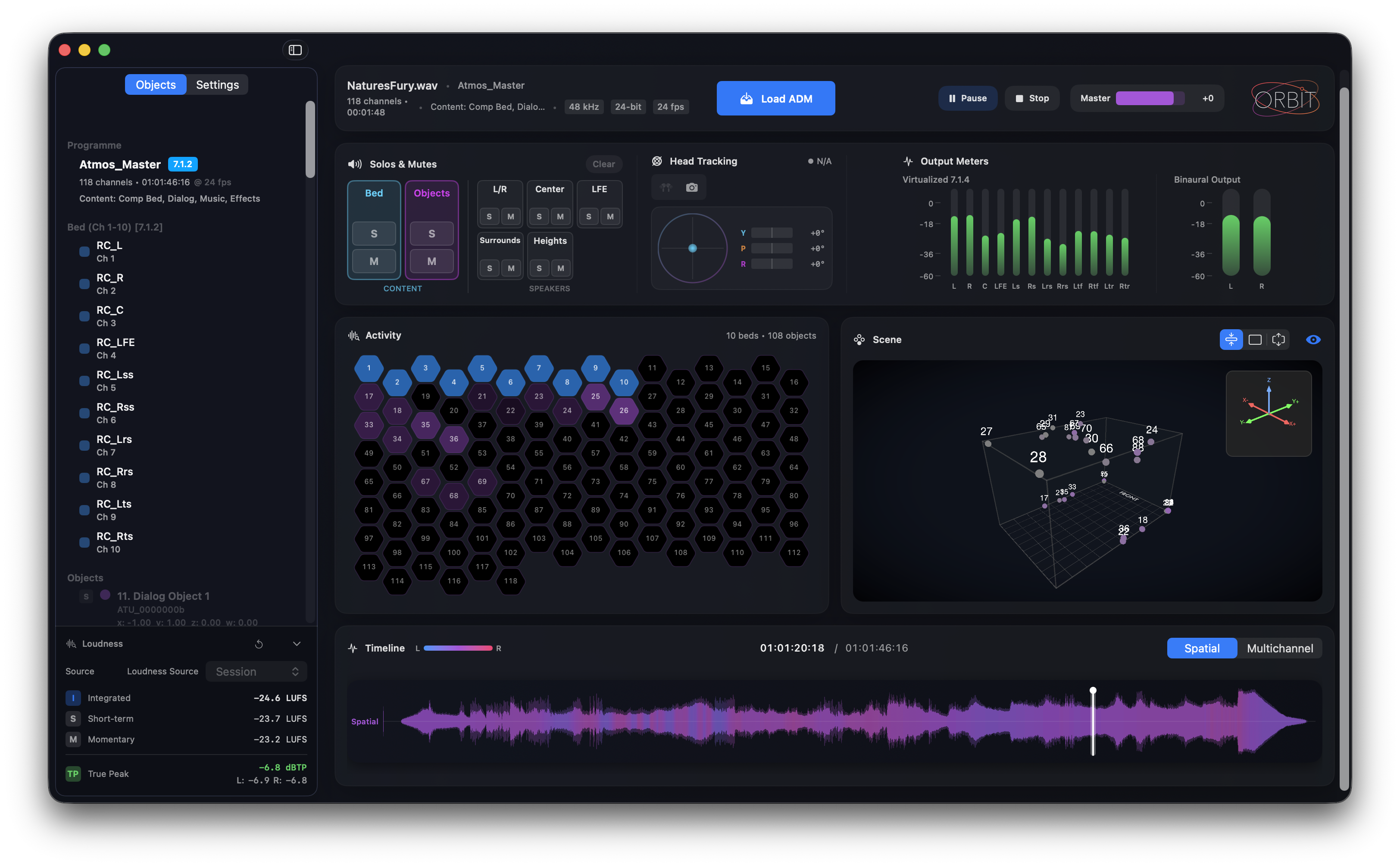
Wait for the import to complete — you'll see the sidebar populate and waveforms appear.
Large files take longer
Orbit scans every object and bed in detail to build waveforms and prepare playback. Load times depend on both file length and number of objects — longer sessions with many objects take more time. We think the wait is worth it. Working with massive ADM files? We'd love to hear from you — drop us feedback via your account portal.
Press Play (or hit Space).
Choose a monitoring mode: 7.1.4 for speakers, Binaural for headphones, or Stereo for a quick fold-down check.
Scrub through the timeline and watch objects move in the 3D visualizer.
That's it — you're up and running.
Before you begin
A few things to check before your first session:
- License: You'll need a license to use Orbit. To start a free 14-day trial, create an account at orbitspatial.io, add the trial license, then enter it via the initial screen or Orbit → Manage License.... Trial licenses require internet connection at least once every 24 hours.
- Output device: Make sure your audio interface or headphones are connected and selected. If you've just connected a device (like AirPods or an audio interface), hit Refresh Devices to pick it up.
- Head tracking (optional): If you want to use head tracking in Binaural mode, connect your AirPods or ensure your camera has permission.
For detailed system requirements, see Requirements. For full licensing details, see Licensing.
What happens when you load a file
When you open an ADM BWF, Orbit:
- Reads the programme metadata (name, duration, structure)
- Indexes all beds and objects
- Prepares automation data for real-time playback
- Generates waveform displays (cached to
.orbwavefor faster reloads)
Once complete, the timeline, 3D scene, and meters are ready for inspection.
Your first QC pass
Here's a quick way to build confidence in an ADM:
- Check the basics: Does the programme name and duration match what you expect?
- Watch the 3D scene: Do objects appear and move as intended? Any stuck or jumping objects?
- Scan the meters: Are levels healthy? Any unexpected clipping?
- Try Binaural mode: Does the spatial intent translate to headphones?
- Flip to Stereo: Are essential elements still audible in the fold-down?
Quick confidence check
If you're short on time, inspect three moments: the opening, the densest section, and the final minute. These often reveal the most common issues.
If something goes wrong
File won't load?
- Confirm the file is an ADM BWF with valid metadata (not just any .wav file)
- Try a smaller test file to verify your setup
No audio?
- Check your output device in the Settings tab
- Make sure your monitoring mode matches your setup (e.g., Binaural for headphones)
Objects not moving?
- Scrub to a section with known automation
- Select an object in the sidebar to highlight it in the 3D view
For more help, see Troubleshooting.
Next steps
Now that you're up and running:
- Workspace Tour — Learn what each part of the interface does
- Timeline & Transport — Understand the waveform views and scrubbing
- Monitoring Modes — Dive deeper into 7.1.4, binaural, and stereo options
- QC Workflows — Structured approaches for different QC scenarios